Is My Cloud Storage Actually a Backup?
Is My Cloud Storage Actually a Backup?
Almost certainly not, though it feels like one, and the distinction only becomes visible on the day it matters.
Sync and backup are solving two different problems. Sync keeps the same files in step across your devices, so what you see on the laptop matches what you see on the phone. Backup keeps a separate copy you can return to, from a point in time before something went wrong. The first of those is about convenience day to day. The second is about recovery, and only one of them will save you.
What sync actually does when things go badly
Consider what a sync service is designed to do. It watches a folder and faithfully reproduces changes everywhere else, quickly, without asking.
That is exactly the behaviour you want when you edit a quote on the office machine and open it on the train. It is exactly the behaviour you do not want when something on your computer starts encrypting files. From the sync client's point of view, encryption is a change, and its job is to copy changes. So it does, efficiently, to every device and to the cloud, usually before anybody notices anything is wrong.
Deletion behaves in exactly the same way. Somebody clears out a folder they believed was theirs, and it disappears everywhere within seconds.
The National Cyber Security Centre (NCSC) is direct about this in its guidance on mitigating malware and ransomware attacks. It records incidents where ransomware encrypted not only the data on the machine but the connected drives, the network storage and the cloud storage holding the backups, because all of it was online at the moment the attack ran. Its instruction is that a backup should be kept offline and separate from the network, or in a cloud service specifically designed to resist exactly this.
The analogy people find useful here is a rented office. Nobody assumes the landlord has been quietly photocopying their paperwork, and if the building burns then the filing cabinet burns with it. The lease covers the building rather than what is inside it, which is roughly the deal you have with a sync provider.
The bit that does help, and its limits
None of that makes cloud storage useless in an incident. Version history is real, and most people have never opened it.
Microsoft 365 and Google Workspace both keep previous versions of files for a period, and both offer a way to restore a whole library to an earlier point. That has genuinely rescued businesses from accidental deletion, from a member of staff overwriting a spreadsheet, and from some ransomware. It is worth learning where that feature is before you need it, because hunting for it while the phones are ringing is a poor use of an afternoon.
The limits matter every bit as much. Version history runs for a bounded retention period rather than forever. It restores files rather than a working system. And it lives inside the same account, so it protects you against a damaged file and not against somebody who controls the account and can turn the feature off.
So if somebody has your password, the recovery mechanism sits inside the very thing they now control. That is uncomfortable and there is no tidy way around it.
So what does count as a backup?
One question is worth more than any product comparison. If something on your computer encrypted every file it could reach right now, would this copy still be there afterwards?
A folder that syncs automatically would not survive it. Nor would an external drive left permanently plugged in, or any network share the machine is able to write to, which covers most of what small businesses actually have. What survives is a copy that is disconnected, or held somewhere that will not accept a destructive change on demand, which is what "immutable" means when a backup product advertises it.
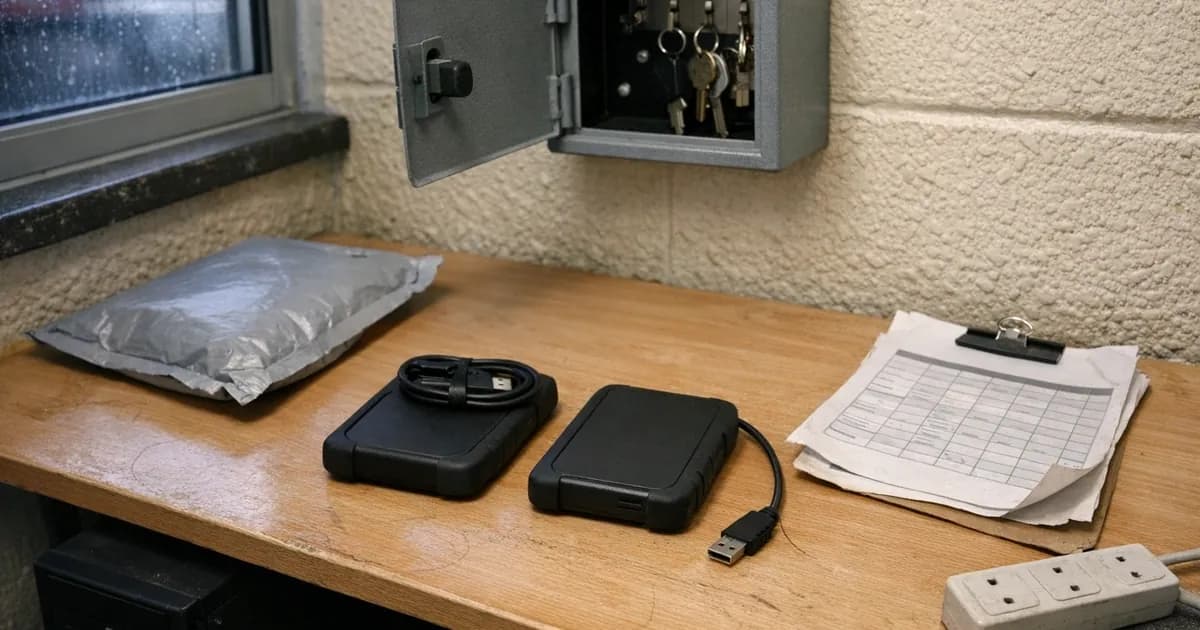
For a very small business, an external drive that is connected weekly and then unplugged again is a genuine backup, and it costs less than a month of most subscriptions. It is unglamorous and it depends on somebody actually remembering, which is its real weakness rather than anything technical.
Two drives used in rotation is better still, with one kept away from the premises. That covers the case nobody plans for, which is not ransomware at all but fire, flood or theft taking the computer and the backup sitting next to it in the same movement.
For anything larger, a proper backup service is worth the money, and the feature to look for is retention that cannot be deleted by whoever happens to be signed in. The point here is not the brand you pick. What matters is whether an attacker holding your credentials can destroy the copy, and that is a question you can put to any supplier in one sentence before you buy.
Ask it plainly: if somebody signs in as our administrator tomorrow, what can they delete? A good answer describes a retention period that simply cannot be shortened from inside the account. A vague answer about encryption and data centres is answering a different question, and usually means the honest answer is "everything".
Nobody actually decides to skip backups
The failure here is not really about technology at all.
Almost nobody sits down and decides they do not need backups. What happens instead is that a business moves to Microsoft 365 or Google Workspace, everything lands in the cloud, and the question quietly answers itself. The files are in the cloud, the cloud is somebody else's professionally run infrastructure, and therefore the files must be safe.
Every part of that reasoning is fine except the conclusion. The provider genuinely does run resilient infrastructure, and it genuinely will not lose your data through a hardware failure. What it will do, correctly and by design, is faithfully replicate whatever you do to your own files. Their responsibility is keeping the service running. Yours is deciding what should happen to your data, and that division is set out plainly in the terms nobody reads.
What to do about it
Start by finding out what you actually have, rather than what you assume. Open the admin settings and establish whether anything creates a copy separate from the live data, and how far back it reaches. Do this before buying anything: a fair number of businesses discover they are already paying for a backup product nobody switched on, and roughly as many discover the opposite, a line item that turns out to be storage rather than backup.
Then learn where version history lives in whichever platform you use, and restore a single file today while nothing is wrong. Ten minutes now means you know where to click on the day you are panicking. While you are in there, check how far back it goes, because retention windows are shorter than people guess and they differ between file storage, mailboxes and deleted accounts.
After that, the substantive one: get a copy that is genuinely separate. Offline, or in a service built to resist deletion. If a single ransomware run can reach every copy you own, you have one copy, however many places it appears to live in.
Test it by restoring something real rather than by looking at a status page. The most common discovery during an incident is not that the backup was missing. It is that it had been quietly failing for months, or that nobody had ever tried to bring data back from it and it turned out to be considerably harder than expected.
And write down which person owns it. In small businesses backups fail because they belong to everybody, and therefore to nobody in particular.
Our cyber readiness check covers this among the basics, and our guide on what Cyber Essentials does and does not require of backups has the certification detail.
What about the accounts themselves?
One more gap, and it is the one people find last.
Everything described so far concerns your files. Your business also depends on things that are not files at all: the mailbox and its folder structure, the calendars, the contacts, the shared team sites, and the configuration that makes all of it work. Restoring a folder of documents does not bring any of that back.
Most cloud platforms retain a deleted mailbox for a limited window, and after that it is gone. If somebody deletes an account rather than a file, or if an account is compromised and emptied, the clock is a good deal shorter than people assume and the recovery route is narrower.
This is the specific gap that dedicated backup products for Microsoft 365 and Google Workspace exist to fill, and it is the honest argument for buying one. Not that the provider might lose your data, because it will not. It is that you can lose your own, in a way the provider's own tools were never designed to undo.
The short version
Sync mirrors your files, faithfully, including the damage. A backup keeps a copy you can go back to.
You want both, and most businesses have only the first while sincerely believing they have the second. The question that separates them is whether any copy would survive something destructive happening to your live data this afternoon.
If you are not sure of the answer, that is itself the answer, and it is worth half an hour this week rather than a very bad week later on.

Get cybersecurity insights delivered
Join our newsletter for practical security guidance, Cyber Essentials updates, and threat alerts. No spam, just actionable advice for UK businesses.
Related Guides
Doesn't the Firewall Block All This?
A firewall controls which doors are open. Almost every modern attack arrives through a door you deliberately left open, which is why it passes straight through.
Do Macs Get Viruses?
Yes, and macOS already includes protection you may not know about. Here is what it covers, what it misses, and whether to add anything.
Does Incognito Mode Make Me Anonymous?
It hides your history from the next person using the device. Your employer, your provider and the sites themselves see exactly as much as before.
How Do I Know If a Website Is Fake?
Read the address, not the page. The padlock proves nothing about honesty, and the polish of a site proves even less.
Is It Safe to Plug In a USB Stick?
A drive you did not buy is a device somebody else configured. Here is what can actually go wrong, and what to do with one you have found.
Is the Café Wifi Safe, and Do I Need a VPN?
The risk is real but different from what you were told. Here is what actually matters on a shared network, and when a VPN genuinely helps.
Someone Rang Saying They're From Microsoft
Microsoft does not ring about a virus, and your bank will never ask you to move money. Hang up and dial the number you already had.
We've Got Nothing Worth Stealing
They are not after your trade secrets. They are after your payroll run, your mailbox and the machines themselves, which every business has.
Our IT Company Handles Security, Don't They?
Keeping systems running and defending them are different jobs. Five questions that tell you which one you are paying for.
Should I Install That Update?
Yes, if it came from the device itself. No, if it appeared in a browser. That single distinction covers almost every case.
Ready to get certified?
Book your Cyber Essentials certification or check your readiness with a free quiz.