macOS Firewall Configuration for Cyber Essentials
macOS Firewall Configuration for Cyber Essentials
Apple ships every Mac with the application firewall turned off entirely, not misconfigured or partially enabled but completely off. I have lost count of the number of assessments where a company has twenty Macs, all with the firewall disabled, and nobody knew because macOS doesn't nag you about it the way Windows does. Two minutes per machine to fix. Zero cost. But if you haven't done it, the Firewall control fails.
What I look for during an assessment
The firewall being on is the obvious one, but I check more than that.
Is stealth mode enabled on the device or not? Stealth mode stops the Mac responding to pings and other network discovery probes. It is a single toggle and it gets missed constantly. Without it, the machine announces itself on the network to anyone scanning.
Are only the right applications allowed through? The macOS firewall works at the application level, not the port level. By default, it lets any signed application accept incoming connections. That means the moment you install a screen sharing tool or a chat application, it can receive inbound traffic without asking. The assessor wants to see that you've restricted this to applications that genuinely need it.
Is Gatekeeper turned on and configured correctly? Gatekeeper controls which applications are allowed to run on the device. It should be set to allow apps from the App Store and identified developers only. This is part of the Secure Configuration control, not the Firewall control, but I check it at the same time since I am already looking at security settings.
Is the macOS version still receiving security updates? Apple typically provides security updates for the current version and two prior major releases. Anything older doesn't get patches, which fails the Secure Configuration control outright.
For a deeper technical breakdown of how these macOS settings map to the CE Plus controls, see the CE Plus technical controls.
Turning on the firewall
Through System Settings (Ventura, Sonoma, Sequoia)
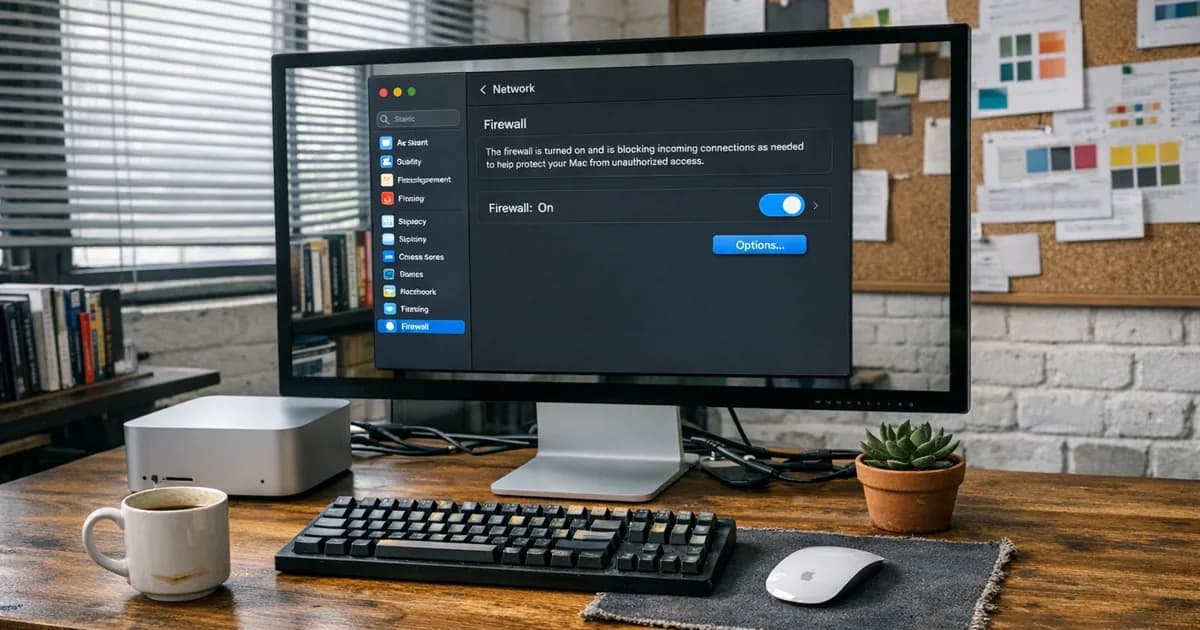
Open System Settings, click Network in the sidebar, click Firewall, and toggle it on. Then click Options to enable stealth mode and review which applications are allowed through.
Honestly, it really is that simple for a single machine. The problem is that nobody does it during setup, and macOS never prompts you.
Through the terminal
If you prefer the command line or need to script it across multiple machines:
sudo /usr/libexec/ApplicationFirewall/socketfilterfw --setglobalstate on
sudo /usr/libexec/ApplicationFirewall/socketfilterfw --setstealthmode on
Verify:
sudo /usr/libexec/ApplicationFirewall/socketfilterfw --getglobalstate
sudo /usr/libexec/ApplicationFirewall/socketfilterfw --getstealthmode
Both should return "enabled".
Tightening application rules
The default behaviour lets any signed application receive incoming connections automatically. For a CE assessment, that is usually too permissive.
# Stop automatically allowing signed software
sudo /usr/libexec/ApplicationFirewall/socketfilterfw --setallowsigned off
sudo /usr/libexec/ApplicationFirewall/socketfilterfw --setallowsignedapp off
Then add back only the applications that need to accept inbound traffic:
sudo /usr/libexec/ApplicationFirewall/socketfilterfw --add /Applications/Slack.app
Check your current rules:
sudo /usr/libexec/ApplicationFirewall/socketfilterfw --listapps
Most applications do not need inbound connections, including browsers, mail clients, and word processors. The applications that do are things like remote management tools, screen sharing services, and development servers. If an application appears in your firewall rules and you cannot explain why it needs inbound access, remove it.
Managing a fleet with configuration profiles
If you are running more than a handful of Macs, you should be using an MDM solution (Jamf, Mosyle, Intune, or similar) to push firewall settings as a configuration profile. This ensures the firewall stays on even if a user tries to disable it, and it means new machines are configured correctly from the moment they enrol. (in line with the February 2023 configuration advisory).
A minimal firewall profile looks like this:
<?xml version="1.0" encoding="UTF-8"?>
<!DOCTYPE plist PUBLIC "-//Apple//DTD PLIST 1.0//EN">
<plist version="1.0">
<dict>
    <key>PayloadContent</key>
    <array>
        <dict>
            <key>PayloadType</key>
            <string>com.apple.security.firewall</string>
            <key>EnableFirewall</key>
            <true/>
            <key>EnableStealthMode</key>
            <true/>
            <key>PayloadIdentifier</key>
            <string>com.company.firewall.ce</string>
            <key>PayloadVersion</key>
            <integer>1</integer>
        </dict>
    </array>
</dict>
</plist>
Once this profile is installed, the user cannot turn the firewall off through System Settings. The toggle greys out and users cannot override it. That is the level of control the assessor wants to see in a managed environment.
Gatekeeper and XProtect
These are not part of the Firewall control, but they are part of the Malware Protection and Secure Configuration controls, and the assessor checks them during the same assessment session.
Gatekeeper prevents unsigned or unnotarised applications from running. Check it:
spctl --status
If it says "assessments enabled", you are fine. If not:
sudo spctl --master-enable
I occasionally find Macs where a developer has disabled Gatekeeper to install unsigned tools. If that Mac is in scope, it fails. The fix is instant, but you need to know it happened.
XProtect is Apple's built-in malware detection. It updates automatically through system updates. You do not configure it manually. The only thing you need to do is make sure automatic updates are enabled in System Settings, under General, then Software Update. If system updates are paused or disabled, XProtect stops receiving new signatures, and that becomes a Malware Protection finding.
The mistakes I keep seeing
Firewall off on every Mac in the building. The most common failure. Nobody turned it on during setup, macOS never asked, and the IT person assumed it was on by default because Windows Firewall is.
Stealth mode not enabled, which is a single checkbox that people miss because they enable the firewall and stop there without clicking into the options.
Signed software auto-allowed. The default lets any App Store or notarised application accept inbound connections. A creative agency with 40 different design and collaboration tools installed will have 40 allowed applications, most of which have no reason to accept inbound traffic.
Unsupported macOS version. Apple does not publish an official end-of-life schedule the way Microsoft does, but in practice, once a macOS version is three major releases behind the current one, it stops receiving security updates. If you are still running Monterey when Sequoia is current, check whether Apple is still issuing patches for it.
FileVault not enabled. This is not a firewall issue, but I mention it here because I check it at the same time. FileVault (full disk encryption) is not strictly required for basic CE, but it is good practice and it is part of the Secure Configuration questions. Many organisations already have it on. If you do not, turning it on takes one click and an overnight encryption run.
What to prepare for the assessment
For each Mac in scope, the assessor needs to see:
- The firewall is enabled with stealth mode active
- The list of applications allowed through the firewall, with a reason for each
- Gatekeeper is enabled and set to block unsigned applications
- The macOS version is still supported and receiving security updates
- Automatic updates are turned on for both system and security updates
A screenshot of System Settings showing the firewall enabled and the options panel with stealth mode is the standard evidence. For CE Plus, the assessor checks these settings directly on sampled machines, so make sure every machine matches what you have documented.
Need help getting your Macs ready for a Cyber Essentials assessment? Get in touch or request a quote to talk through your setup.
Related articles
- Linux Firewall Configuration for CE
- Windows Firewall Configuration for CE
- Cyber Essentials: The Five Controls Explained
- Cyber Essentials v3.3: What the Danzell Update Changes

Get cybersecurity insights delivered
Join our newsletter for practical security guidance, Cyber Essentials updates, and threat alerts. No spam, just actionable advice for UK businesses.
Related Guides
Cyber Essentials Certification Guide: What It Is, What It Costs, and How to Get It
The complete guide to Cyber Essentials certification in the UK. Five controls, two levels, one assessment process. Written by an assessor who's certified over 800 businesses.
Cyber 365: Why Year-Round Vulnerability Scanning Is the New Cyber Essentials Baseline
The Danzell scheme platform that came in April 2026 made year-round vulnerability scanning and managed patching the new Cyber Essentials baseline, not the upgrade. What that operationally means, what it covers, and how the Cyber 365 programme delivers it.
Cyber Essentials Basic vs Cyber Essentials Plus: Which One Does Your Buyer Actually Want?
Cyber Essentials Basic is a self-assessment certificate. Cyber Essentials Plus adds an external assessor sampling the controls in your estate. Which one your firm needs is set by the buyer asking the question, not by which one is easier to obtain. The differences, the costs, the timelines, and how to read the procurement requirement correctly.
Cyber Essentials Plus vs PCI DSS Self-Assessment: Which Cyber Standard Does Your Card-Handling Firm Actually Need?
Cyber Essentials Plus is the UK government scheme for the IT estate. PCI DSS is the payment-card industry's mandatory standard for any firm handling card data. They cover different scopes and run alongside each other, not as alternatives. The differences, the overlap, and how UK retailers handle both.
Cyber Essentials vs Cyber Assessment Framework (CAF): Which UK Cyber Standard Does Your Sector Actually Need?
Cyber Essentials is the UK government scheme for general business. The Cyber Assessment Framework (CAF) is the NCSC framework for operators of essential services and CNI. Which one your firm needs is set by sector classification, not by which is harder. The differences, the overlap, and the procurement context.
Cyber Essentials vs NIST CSF: Which Cyber Framework Do UK Firms with US Exposure Actually Need?
Cyber Essentials is the UK government scheme. NIST CSF is the US federal cybersecurity framework. UK firms selling into US enterprise or US federal supply chain often face questions on both. The differences, the overlap, and how to read the requirement correctly.
Cyber Essentials Plus vs SOC 2: Which Cyber Standard Does Your Customer Base Actually Need?
Cyber Essentials Plus is the UK government scheme. SOC 2 is the global SaaS attestation standard. Both prove cyber controls. Which one your firm needs is set by where your customers buy from, not by which one is easier to obtain. The two standards side by side, the cost and timeline reality, and the cases where holding both is the right answer.
The Danzell Question Set Guide: What Changed in the April 2026 Cyber Essentials Update
The Danzell assessment platform replaced Marlin in April 2026, bringing year-round scanning and patching into explicit scope. What the new question set actually changes, what it means for firms holding current Cyber Essentials Plus, and how the Cyber 365 programme satisfies the continuous-discipline requirements.
IASME Cyber Assurance vs Cyber Essentials Plus: Which IASME Tier Does Your Procurement Actually Want?
IASME Cyber Assurance is IASME's audit-based cybersecurity standard. Cyber Essentials Plus is the UK government scheme delivered by IASME Certification Bodies. Both come from IASME. They prove different things. The differences, the procurement context, and the 2026 framework changes.
PPN 09/14 Compliance Guide: How UK Suppliers Meet the Cabinet Office Cyber Essentials Floor
Procurement Policy Note 09/14 set Cyber Essentials as the procurement floor for UK central government suppliers handling personal data or providing certain ICT services. What PPN 09/14 actually requires, where CE Plus fits in the framework, and how UK suppliers satisfy the cyber section of central government bid questionnaires.
Ready to get certified?
Book your Cyber Essentials certification or check your readiness with a free quiz.