Windows Firewall Configuration for Cyber Essentials
Windows Firewall Configuration for Cyber Essentials
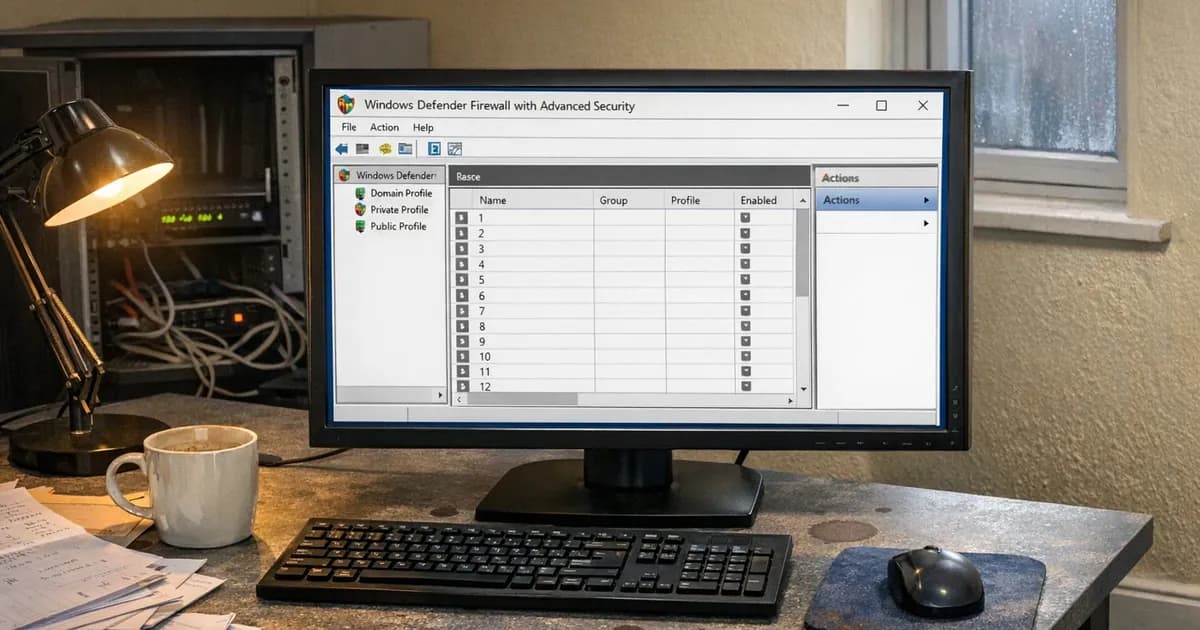
Windows Defender Firewall is on by default, which is more than you can say for macOS or Linux. The problem is not that it is off. The problem is the rules. A typical Windows 10 machine has somewhere between 80 and 120 inbound firewall rules, many of them enabled, most of them never reviewed by anyone. And then there are the organisations that turned the whole thing off via Group Policy five years ago because an application needed a port opened and the IT person at the time couldn't work out the specific rule. Both situations fail the Firewall control.
What the assessment actually covers
The assessment covers three things, same as every other platform.
Is the firewall enabled on all three profiles? Windows has three firewall profiles: Domain, Private, and Public. They correspond to the type of network the machine is connected to. All three need the firewall turned on. I find machines where the Domain profile is configured correctly because the Group Policy covers it, but the Private and Public profiles are left wide open because nobody thought about what happens when a laptop leaves the office.
Is the default inbound action set to Block? The firewall is only useful if unsolicited inbound traffic is dropped by default. If the default is set to Allow, the firewall is a list of things it blocks rather than a list of things it permits. That is the wrong model and it fails.
Are the inbound allow rules documented and justified? This is the part that takes actual work. Every enabled inbound rule needs a documented business reason. "File and Printer Sharing" on a machine that does not share files or printers is an unnecessary exposure.
Checking the current state
Open PowerShell as Administrator:
Get-NetFirewallProfile | Select Name, Enabled, DefaultInboundAction, DefaultOutboundAction
You want all three profiles showing Enabled as True and DefaultInboundAction as Block. If any profile deviates from that, fix it before the assessment.
To see how many inbound allow rules are active:
(Get-NetFirewallRule -Direction Inbound -Enabled True -Action Allow).Count
On a freshly installed Windows 10 machine, this number is already in the 60s. After applications are installed and various services configured, it can reach triple digits. Most of those rules are unnecessary for the average workstation.
Fixing the configuration
PowerShell commands
Set-NetFirewallProfile -Profile Domain,Public,Private -Enabled True
Set-NetFirewallProfile -All -DefaultInboundAction Block
Set-NetFirewallProfile -All -DefaultOutboundAction Allow
That is the foundation. Firewall on, all profiles, default deny inbound.
Group Policy for domain environments
This is the right way to do it if you have Active Directory:
- Open Group Policy Management on your domain controller
- Create or edit a GPO linked to your workstation and server OUs
- Navigate to Computer Configuration, then Policies, then Windows Settings, then Security Settings, then Windows Defender Firewall with Advanced Security
- For each profile (Domain, Private, Public) set: Firewall state On, Inbound connections Block, Outbound connections Allow
This matters because the Group Policy prevents users from turning the firewall off. It also prevents the scenario where a laptop's Public profile is configured differently from its Domain profile, which is one of the most common findings I report.
Cleaning up inbound rules
This is where most organisations need to spend their time. The commands above ensure the firewall is on and blocking by default, but the inbound allow rules create holes in that default.
List everything currently allowed inbound:
Get-NetFirewallRule -Direction Inbound -Enabled True -Action Allow | Select DisplayName, Profile | Sort DisplayName
Go through the list. For each rule, ask: does this machine need to accept inbound traffic for this service? If the answer is no, disable it:
# Disable File and Printer Sharing if not sharing anything
Disable-NetFirewallRule -DisplayGroup "File and Printer Sharing"

# Disable Network Discovery if not needed
Disable-NetFirewallRule -DisplayGroup "Network Discovery"

# Disable Remote Desktop if not actively used
Disable-NetFirewallRule -DisplayGroup "Remote Desktop"
Common rules that are enabled by default but rarely needed on individual workstations: File and Printer Sharing, Network Discovery, Remote Desktop, Windows Remote Management, Core Networking (some sub-rules), and various application-specific rules that were created during installation. (based on findings from the internal exposure audit).
I am not suggesting you disable everything blindly. Test on one machine first before rolling out changes. But I routinely find that 40 to 50 percent of the enabled inbound rules on a typical workstation can be disabled without affecting anything.
Creating rules for services you actually need
If a machine runs a service that requires inbound connections, create a specific rule:
New-NetFirewallRule -DisplayName "Allow HTTPS Web Server" `
    -Direction Inbound `
    -Protocol TCP `
    -LocalPort 443 `
    -Action Allow `
    -Profile Any `
    -Description "Web server for customer portal"
Good rules specify the port, the protocol, and ideally the source address range if the traffic comes from a known network. A rule like "Allow all inbound from 10.0.0.0/8" is too broad, whereas "Allow TCP 443 from 10.0.1.0/24" is specific enough that the assessor won't question it.
Enabling firewall logging
Logging is off by default, so turn it on. It costs nothing in terms of performance and gives you visibility into what the firewall is blocking:
Set-NetFirewallProfile -All -LogAllowed True
Set-NetFirewallProfile -All -LogBlocked True
Set-NetFirewallProfile -All -LogMaxSizeKilobytes 16384
Logs go to %systemroot%\system32\LogFiles\Firewall\pfirewall.log. I do not check logs during a standard CE assessment, but having them available shows the assessor that you are monitoring your firewall rather than just configuring it and forgetting about it.
The problems I keep finding
Firewall disabled by a five-year-old GPO. Someone created a Group Policy Object that disables Windows Firewall across the entire domain. The original reason is lost to history. The fix is to remove or override that GPO, but first you need to find it, which means auditing your GPOs for firewall-related settings. Run gpresult /h report.html on a workstation and search the report for firewall policies.
Public and Private profiles neglected. The Domain profile is locked down properly, but the Private and Public profiles still use default settings or worse. When a laptop connects to a hotel wireless network, it uses the Public profile. If that profile has a permissive inbound policy, the machine is exposed.
Application installers adding firewall rules silently. Every time you install certain applications (Zoom, Slack, development tools, database clients), they create inbound firewall rules during installation. Nobody reviews these. Over time, the list of allowed inbound applications grows until the firewall is more hole than wall.
Confusing the three profile model. Some IT teams configure the Domain profile and assume it applies everywhere. It does not. If a machine leaves the domain network, it switches to Private or Public. Each profile needs its own configuration.
What to prepare for the assessment
The assessor needs evidence of three things:
-
The firewall is enabled on all three profiles with Block as the default inbound action. A screenshot of the PowerShell output from
Get-NetFirewallProfilecovers this. -
Inbound allow rules are limited to necessary services. Export the list with
Get-NetFirewallRuleand annotate each enabled rule with its business justification. The assessor will not check every rule, but they will sample a few and ask why they exist. -
The configuration is enforced via Group Policy in domain environments. Show the GPO settings that enforce the firewall state and prevent users from modifying it.
If you are running standalone machines without Active Directory, the evidence is the same but without the GPO. Show the firewall status on each machine in scope.
Need help getting your Windows firewall configuration ready for assessment? Get in touch or request a quote to discuss your setup.
Related articles
- Linux Firewall Configuration for CE
- macOS Firewall Configuration for CE
- Cyber Essentials: The Five Controls Explained
- Danzell Readiness Checklist: Are You Ready for CE v3.3?

Get cybersecurity insights delivered
Join our newsletter for practical security guidance, Cyber Essentials updates, and threat alerts. No spam, just actionable advice for UK businesses.
Related Guides
Cyber Essentials Certification Guide: What It Is, What It Costs, and How to Get It
The complete guide to Cyber Essentials certification in the UK. Five controls, two levels, one assessment process. Written by an assessor who's certified over 800 businesses.
Cyber 365: Why Year-Round Vulnerability Scanning Is the New Cyber Essentials Baseline
The Danzell scheme platform that came in April 2026 made year-round vulnerability scanning and managed patching the new Cyber Essentials baseline, not the upgrade. What that operationally means, what it covers, and how the Cyber 365 programme delivers it.
Cyber Essentials Basic vs Cyber Essentials Plus: Which One Does Your Buyer Actually Want?
Cyber Essentials Basic is a self-assessment certificate. Cyber Essentials Plus adds an external assessor sampling the controls in your estate. Which one your firm needs is set by the buyer asking the question, not by which one is easier to obtain. The differences, the costs, the timelines, and how to read the procurement requirement correctly.
Cyber Essentials Plus vs PCI DSS Self-Assessment: Which Cyber Standard Does Your Card-Handling Firm Actually Need?
Cyber Essentials Plus is the UK government scheme for the IT estate. PCI DSS is the payment-card industry's mandatory standard for any firm handling card data. They cover different scopes and run alongside each other, not as alternatives. The differences, the overlap, and how UK retailers handle both.
Cyber Essentials vs Cyber Assessment Framework (CAF): Which UK Cyber Standard Does Your Sector Actually Need?
Cyber Essentials is the UK government scheme for general business. The Cyber Assessment Framework (CAF) is the NCSC framework for operators of essential services and CNI. Which one your firm needs is set by sector classification, not by which is harder. The differences, the overlap, and the procurement context.
Cyber Essentials vs NIST CSF: Which Cyber Framework Do UK Firms with US Exposure Actually Need?
Cyber Essentials is the UK government scheme. NIST CSF is the US federal cybersecurity framework. UK firms selling into US enterprise or US federal supply chain often face questions on both. The differences, the overlap, and how to read the requirement correctly.
Cyber Essentials Plus vs SOC 2: Which Cyber Standard Does Your Customer Base Actually Need?
Cyber Essentials Plus is the UK government scheme. SOC 2 is the global SaaS attestation standard. Both prove cyber controls. Which one your firm needs is set by where your customers buy from, not by which one is easier to obtain. The two standards side by side, the cost and timeline reality, and the cases where holding both is the right answer.
The Danzell Question Set Guide: What Changed in the April 2026 Cyber Essentials Update
The Danzell assessment platform replaced Marlin in April 2026, bringing year-round scanning and patching into explicit scope. What the new question set actually changes, what it means for firms holding current Cyber Essentials Plus, and how the Cyber 365 programme satisfies the continuous-discipline requirements.
IASME Cyber Assurance vs Cyber Essentials Plus: Which IASME Tier Does Your Procurement Actually Want?
IASME Cyber Assurance is IASME's audit-based cybersecurity standard. Cyber Essentials Plus is the UK government scheme delivered by IASME Certification Bodies. Both come from IASME. They prove different things. The differences, the procurement context, and the 2026 framework changes.
PPN 09/14 Compliance Guide: How UK Suppliers Meet the Cabinet Office Cyber Essentials Floor
Procurement Policy Note 09/14 set Cyber Essentials as the procurement floor for UK central government suppliers handling personal data or providing certain ICT services. What PPN 09/14 actually requires, where CE Plus fits in the framework, and how UK suppliers satisfy the cyber section of central government bid questionnaires.
Ready to get certified?
Book your Cyber Essentials certification or check your readiness with a free quiz.