macOS and Cyber Essentials: What Mac Users Need to Know
macOS and Cyber Essentials: What Mac Users Need to Know
Macs are not exempt from any Cyber Essentials requirement. The five technical controls apply to every device in scope, regardless of operating system. Firewalls, secure configuration, user access control, malware protection, and patch management all apply to macOS exactly as they apply to Windows.
macOS has built-in features that align with several CE controls. "It's a Mac, so it's secure" is not an answer your assessor will accept. You need to show the controls are configured and working, same as any other device.
Does macOS count as having anti-malware?
Cyber Essentials requires anti-malware protection on all in-scope devices. macOS includes XProtect (signature-based malware scanning) and Gatekeeper (code signing verification that blocks unsigned applications). These built-in protections can satisfy the CE anti-malware requirement if you can show they're enabled and updating.
The assessor may ask to see that Gatekeeper is set to allow only applications from the App Store and identified developers. They may also ask to confirm that XProtect definitions are updating automatically.
Third-party anti-malware is also acceptable and sometimes easier to evidence. Products like Microsoft Defender for Endpoint (which has a macOS version) give you a central dashboard showing protection status across all devices. If you're running a mixed Mac and Windows environment, a single anti-malware platform across both makes the evidence simpler.
You don't need both built-in and third-party. One or the other is sufficient, as long as you can demonstrate it's active and updating.
How does the firewall requirement work on macOS?
Cyber Essentials requires a firewall that blocks inbound connections by default, allowing only services you've explicitly approved. macOS includes an application firewall in System Settings (previously System Preferences) that controls which applications can accept incoming connections.
Turn it on and configure it properly. Set it to block all incoming connections except for services you specifically need. The assessor will ask to see the firewall settings and the list of allowed applications.
If your Mac sits behind a hardware firewall or router that already handles inbound filtering, you still need the device-level firewall enabled. CE requires protection at the device level, not just the network boundary.
What about admin accounts on Macs?
Admin accounts must be separate from standard user accounts. This is the same requirement as Windows, and it catches Mac users more often because macOS makes it easy to set up a single admin account during initial setup and use it for everything.
Create a separate administrator account for system changes. Use a standard account for daily work. macOS prompts for admin credentials when you need to install software or change system settings, so the workflow still works. You don't need to log out and back in.
The assessor will check your user account list. If the account someone uses for email, browsing, and daily work is the same account with admin privileges, that's a fail. Split the accounts before your assessment starts.
How does the 14-day patching rule apply to macOS?
All security updates with a Common Vulnerability Scoring System (CVSS) score of 7.0 or above must be applied within 14 days of the vendor releasing them. Apple releases security updates regularly, and the assessor checks update histories.
Enable automatic updates in System Settings under General. macOS can download and install updates automatically, which is the simplest way to stay compliant. The assessor may ask to see the Software Update settings and the update history showing when patches were applied.
One complication: Apple doesn't publish CVSS scores for every update in the same way Microsoft does. Apple releases security notes listing the vulnerabilities addressed, but the scoring isn't always immediately available. In practice, treat every Apple security update as potentially critical and apply it within 14 days. Waiting to confirm the CVSS score before patching creates a window where you might miss the deadline.
Your Mac must be running a supported macOS version. Apple generally provides security updates for the current version and two previous major versions. If your Mac is running a version that no longer receives security updates, it can't meet the 14-day patching requirement because there are no patches to apply. That device either needs upgrading or replacing.
Apple states that not all known security issues are addressed in previous macOS versions. Running the latest version is the safest option for compliance.
What about personal MacBooks (BYOD)?
If staff use personal MacBooks for work, those devices are in scope under Danzell. They need all five controls met: firewall enabled, anti-malware active, security updates applied within 14 days, admin accounts separated from standard accounts, and multi-factor authentication (MFA) on any cloud services accessed from that device.
The only exceptions are devices used solely for voice calls, text messages, or MFA apps. If someone checks work email, accesses a company SharePoint, or logs into any business cloud service from their personal Mac, that Mac is in scope.
This is where the conversation gets difficult. Asking staff to change the configuration of their personal computer is a different conversation than managing company-owned hardware. But the requirement doesn't care who owns the device. It cares whether it accesses business data.
For more on the BYOD rules, see the BYOD device classification guide.
Do I need device management software for Macs?
It depends on how many Macs you have and how you want to manage them.
For small environments (fewer than 10 Macs), you can manage compliance manually. Check each device's settings, take screenshots, keep records. It's manageable at that size but doesn't scale well. (referenced in the comprehensive provenance benchmarking report).
For larger environments, a device management tool makes life significantly easier. Apple Business Manager combined with a Mobile Device Management (MDM) solution like Jamf or Microsoft Intune lets you enforce settings centrally: firewall on, automatic updates enabled, admin account separation enforced, Gatekeeper configured. It also gives you a dashboard the assessor can review instead of checking each device individually.
You don't need expensive enterprise tools for a handful of Macs. But you do need to be able to demonstrate that every Mac in scope meets every control.
What I actually check on Macs during CE Plus
During a CE Plus assessment, I'm sitting at the device (or connected remotely) and going through a specific list of checks. On every Mac in the sample I am looking at the same handful of things.
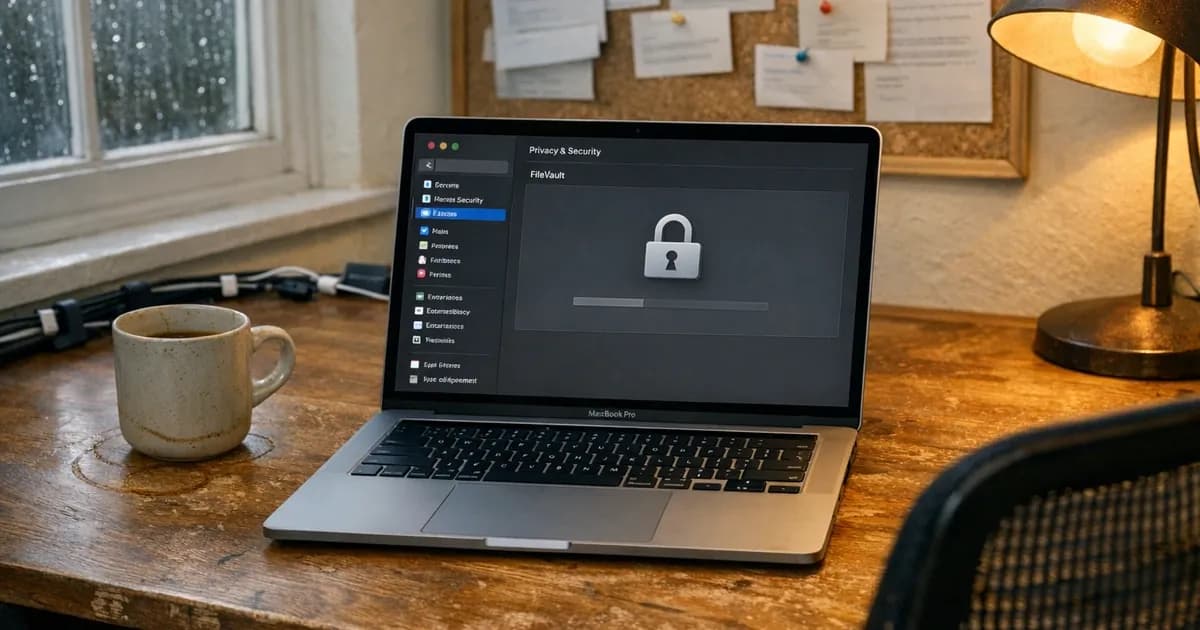
FileVault encryption. I open System Settings, go to Privacy and Security, and check whether FileVault is turned on. If the device stores business data locally, the drive needs to be encrypted. FileVault uses full-disk encryption, and it should be enabled for every user account on that Mac. If it's off, that's a finding.
Gatekeeper settings. I check that Gatekeeper is set to allow applications only from the App Store and identified developers. If someone's overridden this to allow apps from "anywhere", that's a fail on the malware protection control. I see this more often than you'd think, usually because someone installed a niche application that wasn't signed and turned off Gatekeeper to do it, then never turned it back on.
Automatic updates. I go into System Settings, General, Software Update, and check whether automatic updates are enabled. I'm looking for "Install macOS updates" and "Install Security Responses and system files" to both be turned on. Then I check the update history to confirm patches have actually been applied within the 14-day window.
Firewall state. I open System Settings, then Network, then Firewall, and confirm it is turned on. I check which applications are allowed to accept incoming connections and make sure the list is reasonable.
Screen lock timeout. The device needs to lock after a period of inactivity. I'm checking that a screen lock is configured and that it requires a password to unlock. Under Danzell, this falls under secure configuration.
Password policy. The account needs a password that meets the minimum requirements. For Macs not managed by an MDM, this means checking each device individually. If someone's using a four-digit PIN as their login, that's not going to pass.
Admin vs standard accounts. I open System Settings, Users and Groups, and check the account type. If the daily-use account says "Admin" underneath it, that's a fail on user access control. I need to see a separate admin account.
That's seven checks per Mac in the sample. On a well-managed environment with MDM, I can verify most of these from a central dashboard. Without MDM, I'm checking each device manually, which takes longer. The requirements don't change based on how convenient they are to verify.
The common macOS failures
I've assessed hundreds of environments with Macs in scope. These are the failures that come up repeatedly.
Gatekeeper overrides for unsigned apps. Someone needed an application that wasn't in the App Store and wasn't from an identified developer. They turned off Gatekeeper, installed the app, and forgot to turn Gatekeeper back on. The control requires Gatekeeper to be active and set to block unsigned applications. If it's been overridden, that's a malware protection failure.
FileVault not enabled on all user accounts. FileVault gets turned on for the primary user account during setup, but additional user accounts created later don't always get added. I've seen Macs where the main account has FileVault enabled but a secondary admin account doesn't. All accounts on the device need to be covered.
Apple ID vs managed account confusion. Staff set up Macs with their personal Apple ID. The device is then tied to a personal account, not a business-managed one. For CE purposes, the concern is whether you can actually manage and evidence the security controls on a device tied to someone's personal Apple ID. It's not an automatic fail, but it makes everything harder to prove.
Software updates deferred too long. macOS lets users defer updates, and some click "Later" every time the notification appears. Under Danzell, any security update with a CVSS score of 7.0 or above must be applied within 14 days. That 14-day window applies to macOS exactly the same as Windows. Apple doesn't always publish CVSS scores immediately, which is why I tell clients to treat every Apple security update as potentially critical and apply it within 14 days regardless.
Admin account separation. Most Mac users run as admin because that's how the Mac was set up on day one. Fixing this means creating a new standard account and demoting the existing one. It's a five-minute job, but it feels like a bigger change than it is.
Firewall not enabled. The macOS application firewall isn't always turned on by default. I've seen brand-new Macs straight from Apple where the firewall was off out of the box, so always verify it is enabled.
Unsupported macOS versions. Older Macs that can't run a supported macOS version are still in scope if they access business data. If a device can't receive security updates, it can't meet the 14-day patching requirement because there are no patches to apply. That device needs replacing or removing from scope entirely.
Mixed environment inconsistency. Organisations running both Mac and Windows sometimes apply strict policies to Windows devices through Group Policy but leave Macs loosely managed because "Macs don't get viruses." The CE requirements don't distinguish between operating systems. Both need the same controls evidenced to the same standard.
You can check your readiness with the CE Plus readiness quiz or see CE assessment pricing and CE Plus pricing on the website.
Need help with your Cyber Essentials assessment? Get in touch, email [email protected], or call +44 20 3026 2904.
Related articles
- What to Expect on Cyber Essentials Assessment Day
- CE Plus Second Sample Rule Explained
- Cloud Service Inventory for Cyber Essentials
- How We Recreate Real Vulnerabilities in Our Lab
- Why Boutique Cybersecurity Firms Deliver Better Results

Get cybersecurity insights delivered
Join our newsletter for practical security guidance, Cyber Essentials updates, and threat alerts. No spam, just actionable advice for UK businesses.
Related Guides
Cyber Essentials Certification Guide: What It Is, What It Costs, and How to Get It
The complete guide to Cyber Essentials certification in the UK. Five controls, two levels, one assessment process. Written by an assessor who's certified over 800 businesses.
Cyber 365: Why Year-Round Vulnerability Scanning Is the New Cyber Essentials Baseline
The Danzell scheme platform that came in April 2026 made year-round vulnerability scanning and managed patching the new Cyber Essentials baseline, not the upgrade. What that operationally means, what it covers, and how the Cyber 365 programme delivers it.
Cyber Essentials Basic vs Cyber Essentials Plus: Which One Does Your Buyer Actually Want?
Cyber Essentials Basic is a self-assessment certificate. Cyber Essentials Plus adds an external assessor sampling the controls in your estate. Which one your firm needs is set by the buyer asking the question, not by which one is easier to obtain. The differences, the costs, the timelines, and how to read the procurement requirement correctly.
Cyber Essentials Plus vs PCI DSS Self-Assessment: Which Cyber Standard Does Your Card-Handling Firm Actually Need?
Cyber Essentials Plus is the UK government scheme for the IT estate. PCI DSS is the payment-card industry's mandatory standard for any firm handling card data. They cover different scopes and run alongside each other, not as alternatives. The differences, the overlap, and how UK retailers handle both.
Cyber Essentials vs Cyber Assessment Framework (CAF): Which UK Cyber Standard Does Your Sector Actually Need?
Cyber Essentials is the UK government scheme for general business. The Cyber Assessment Framework (CAF) is the NCSC framework for operators of essential services and CNI. Which one your firm needs is set by sector classification, not by which is harder. The differences, the overlap, and the procurement context.
Cyber Essentials vs NIST CSF: Which Cyber Framework Do UK Firms with US Exposure Actually Need?
Cyber Essentials is the UK government scheme. NIST CSF is the US federal cybersecurity framework. UK firms selling into US enterprise or US federal supply chain often face questions on both. The differences, the overlap, and how to read the requirement correctly.
Cyber Essentials Plus vs SOC 2: Which Cyber Standard Does Your Customer Base Actually Need?
Cyber Essentials Plus is the UK government scheme. SOC 2 is the global SaaS attestation standard. Both prove cyber controls. Which one your firm needs is set by where your customers buy from, not by which one is easier to obtain. The two standards side by side, the cost and timeline reality, and the cases where holding both is the right answer.
The Danzell Question Set Guide: What Changed in the April 2026 Cyber Essentials Update
The Danzell assessment platform replaced Marlin in April 2026, bringing year-round scanning and patching into explicit scope. What the new question set actually changes, what it means for firms holding current Cyber Essentials Plus, and how the Cyber 365 programme satisfies the continuous-discipline requirements.
IASME Cyber Assurance vs Cyber Essentials Plus: Which IASME Tier Does Your Procurement Actually Want?
IASME Cyber Assurance is IASME's audit-based cybersecurity standard. Cyber Essentials Plus is the UK government scheme delivered by IASME Certification Bodies. Both come from IASME. They prove different things. The differences, the procurement context, and the 2026 framework changes.
PPN 09/14 Compliance Guide: How UK Suppliers Meet the Cabinet Office Cyber Essentials Floor
Procurement Policy Note 09/14 set Cyber Essentials as the procurement floor for UK central government suppliers handling personal data or providing certain ICT services. What PPN 09/14 actually requires, where CE Plus fits in the framework, and how UK suppliers satisfy the cyber section of central government bid questionnaires.
Ready to get certified?
Book your Cyber Essentials certification or check your readiness with a free quiz.