Mobile Device App Allowlisting for Cyber Essentials: What You Actually Need
Mobile Device App Allowlisting for Cyber Essentials: What You Actually Need
One of the most common questions I get during pre-assessment calls: "Do we need to buy MDM software for our phones?" The short answer is no, because Cyber Essentials requires controls, not specific products. And for most organisations, the controls you need for mobile devices are already built into the platforms you're using.
But that doesn't mean you can ignore your mobile devices. If they access organisational data, they're in scope. All five controls apply to those devices. And the application allowlisting requirement trips up more organisations than you'd expect, because people don't realise what it actually means for phones and tablets.
Which mobile devices are in scope?
The rule hasn't changed under Danzell v3.3. Any mobile device that accesses your organisation's data or services is in scope. That includes phones, tablets, and anything else running a mobile operating system.
There's one narrow exclusion to be aware of. Devices used only for:
- native voice calls
- native text messages (SMS)
- multi-factor authentication apps
are out of scope. All three conditions have to be true. The device is used for those things and nothing else work-related.
The moment someone opens their work email on that phone, or logs into Microsoft 365, or accesses any cloud service your organisation subscribes to, the exclusion no longer applies. That device is in scope and must meet all five Cyber Essentials controls: firewalls, secure configuration, security update management, user access control, and malware protection.
This applies equally to corporate phones and personal (BYOD) devices. Scope is always determined by usage, not device ownership.
What does "application allowlisting" actually mean for mobile?
The Cyber Essentials requirement says that users should only be able to install approved applications on in-scope devices. On a desktop or laptop, this might mean configuring Windows to only allow apps from known publishers, or using application control policies. On mobile, the approach is different because the platforms already handle a lot of this for you.
The requirement is about preventing unapproved software from being installed. You need to show your assessor that in-scope devices can't just have any random application loaded onto them.
What you don't need is a product called "MDM" or a per-device licence to prove it.
How does this work on iOS?
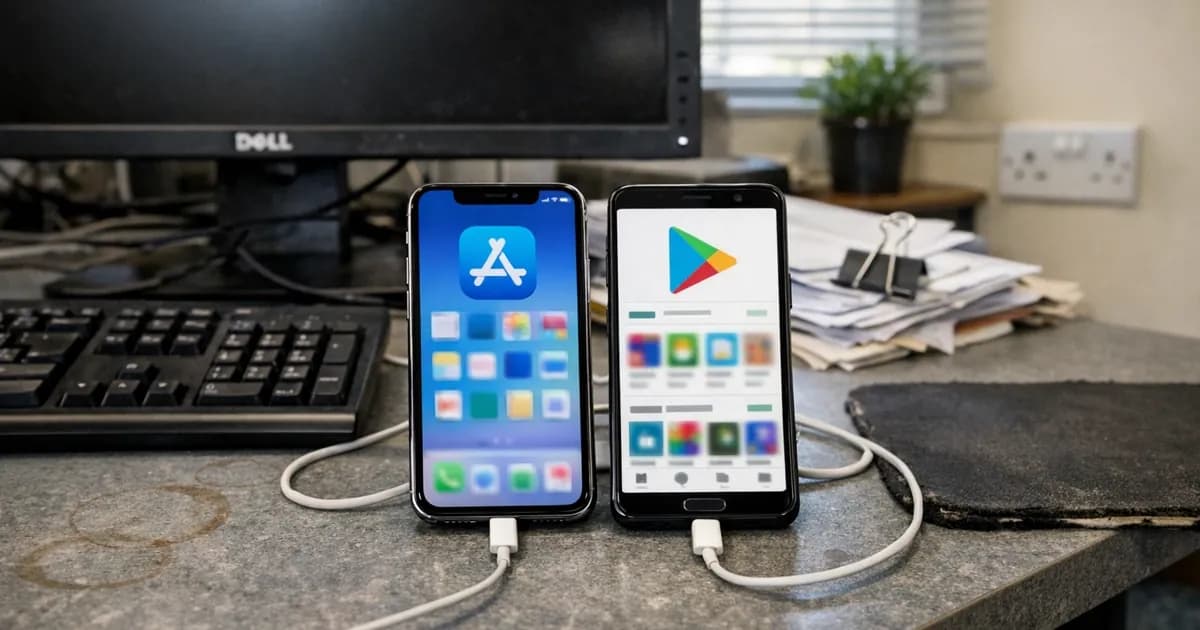
iOS makes this straightforward for most organisations. On a standard iPhone or iPad, apps can only be installed through the Apple App Store. There's no sideloading by default on iOS. The App Store itself acts as the approved application source, because Apple reviews and approves every app before it's available.
As long as the device hasn't been jailbroken, and no developer or enterprise configuration profiles have been installed to enable sideloading, the default iOS setup satisfies the allowlisting control.
For organisations that want tighter control, Apple Configurator (free for macOS) lets you restrict which App Store apps can be installed. You can also push configuration profiles that prevent users from installing or removing specific apps. And if you're already on a Microsoft 365 Business Premium subscription, Intune is included at no extra cost and can manage iOS devices.
But for most CE assessments, the default App Store restriction is enough. Your assessor is looking for evidence that unapproved apps can't be installed. iOS does that out of the box.
What about Android?
Android is where you need to pay more attention. Google Play is the default app store, but Android allows sideloading by default through the "install from unknown sources" setting. If that setting is left on, anyone can install an APK (Android Package Kit) file from a website, an email attachment, or a file transfer. That's the opposite of what application allowlisting requires.
The minimum step: disable "install from unknown sources" on every in-scope Android device. That restricts app installation to Google Play only. On most Android devices running a current version, this setting is actually per-app rather than a global toggle, so you need to make sure no app has been granted permission to install other apps.
That gets you to a baseline that's equivalent to the iOS default.
For BYOD situations, Android Enterprise work profiles are the better option. A work profile creates a separate container on the device for business apps and data. You control what goes into the work profile. The employee controls everything outside it, so personal apps, photos, and browsing history all stay private while business apps and data stay managed.
Android Enterprise is built into Google Workspace and Microsoft 365. If you're using either, you can set up work profiles without buying separate MDM software.
Do you need to buy MDM?
No. Cyber Essentials does not require MDM (Mobile Device Management). It requires that the right controls are in place. How you achieve those controls is up to you.
What actually satisfies the requirement, for most organisations, is this:
| Platform | Free option | What it does |
|---|---|---|
| iOS | Default App Store restriction | Only App Store apps can be installed. No sideloading. |
| iOS | Apple Configurator | Restricts specific apps, pushes configuration profiles |
| Android | Disable "install from unknown sources" | Limits installation to Google Play only |
| Android | Android Enterprise work profiles | Managed business container on BYOD devices |
| Both | Microsoft Intune (included with M365 Business Premium) | Full device and app management |
If you're already paying for Microsoft 365 Business Premium, you've got Intune included in your subscription. That covers both iOS and Android device management without any additional cost. A lot of organisations don't realise this and go shopping for standalone MDM products they don't need.
For organisations with five phones in scope and a straightforward setup, the built-in platform controls are enough. For organisations with 50 or more BYOD devices across mixed platforms, an MDM tool makes your life easier and gives your assessor cleaner evidence. But it's a practical decision, not a compliance requirement. (referenced in the operational hardening benchmarking report).
What about shared devices?
This comes up with tablets in reception areas, shared devices on shop floors, and kiosk-style setups. A shared device with a single PIN that everyone uses is non-compliant. Cyber Essentials requires individual credentials for user access control.
Every person who uses an in-scope device needs their own account with their own credentials. Shared logins don't satisfy the user access control requirement. If you have a shared iPad at reception, you either need individual accounts on the device or you need to take it out of scope by making sure it doesn't access any organisational data or services.
Do all five controls apply to in-scope phones?
Yes. There's no reduced requirement set for mobile devices. If the phone is in scope, it needs:
Firewalls. Both iOS and Android have built-in software firewalls that are on by default. You don't need a third-party firewall app. You need to be able to confirm the device firewall is active.
Secure configuration. Default passwords changed, screen lock enabled (six-digit PIN minimum, or biometric), unnecessary pre-installed apps removed or disabled.
Security update management. The OS and all apps must be kept updated. Critical and high-risk patches within 14 days of release. This is where BYOD gets awkward, because you're relying on the device owner to install updates on a phone you don't own.
User access control. Every user needs individual credentials with no shared logins, and MFA (multi-factor authentication) on all cloud services accessed from the device. Danzell makes this mandatory, not optional.
Malware protection. For iOS, the App Store restriction and built-in platform security satisfy this. For Android, Google Play Protect provides built-in malware scanning. You can also run a third-party anti-malware app. The requirement is that protection is active and up to date.
MFA on mobile cloud access
Under Danzell, MFA is required wherever available on cloud services. That applies to mobile devices in exactly the same way. If someone logs into Microsoft 365 from their phone, MFA must be enabled on that account. If they access a cloud-based CRM, same rule.
This isn't an app allowlisting issue specifically, but it comes up in every conversation about mobile device controls. Organisations that have MFA on their desktop access but haven't configured it for mobile logins get caught by this. The requirement doesn't distinguish between device types at all. If MFA is available on the service, it must be turned on, regardless of how the user accesses it.
What your assessor will actually ask
Assessment questions about mobile devices tend to focus on three things:
Which devices are in scope and why? You need a list ready for this question. Every mobile device that accesses organisational data or services goes on it. Devices that only handle voice, texts, and MFA get documented as excluded, with a note explaining why.
How do you prevent unapproved app installation? For iOS, the answer is usually "App Store only, no jailbreaking, no sideloaded profiles." For Android, the answer is "unknown sources disabled" or "Android Enterprise work profile restricts the app catalogue." The assessor wants to see that you've thought about it and have a control in place.
How do you keep mobile devices updated? This is where BYOD organisations struggle. If you don't own the device, how do you know it's running the latest OS? MDM can verify this automatically, but without it you're relying on a policy and periodic spot checks. That might be enough for a small number of devices, but it gets harder to evidence as the number grows.
Practical steps for your next assessment
If you haven't thought about mobile devices yet, start here.
List every phone and tablet that accesses your organisation's data or services. Don't forget personal devices in this audit. If someone's checked their work email on a personal phone even once, ask whether that's ongoing.
For each device, decide: is it in scope (accesses organisational data) or excluded (voice, texts, and MFA only)?
For iOS devices in scope, confirm they aren't jailbroken and that no sideloading profiles are installed. That's your allowlisting control sorted for iOS.
For Android devices in scope, disable "install from unknown sources." Consider Android Enterprise work profiles if you have BYOD devices.
Check that MFA is enabled on every cloud service accessed from mobile devices.
Document all of this before your assessment. Your assessor needs to see your reasoning, not just your answers.
I've certified over 800 organisations through Cyber Essentials and CE Plus. Mobile device controls are one of the areas where organisations overthink the solution and underthink the evidence. You probably don't need new software for this. You probably do need a better record of what's in scope and how you're managing it.
Related articles
- BYOD Device Classification Under Danzell
- MFA Edge Cases for Cyber Essentials
- What to Expect on Cyber Essentials Assessment Day

Get cybersecurity insights delivered
Join our newsletter for practical security guidance, Cyber Essentials updates, and threat alerts. No spam, just actionable advice for UK businesses.
Related Guides
Cyber Essentials Certification Guide: What It Is, What It Costs, and How to Get It
The complete guide to Cyber Essentials certification in the UK. Five controls, two levels, one assessment process. Written by an assessor who's certified over 800 businesses.
Cyber 365: Why Year-Round Vulnerability Scanning Is the New Cyber Essentials Baseline
The Danzell scheme platform that came in April 2026 made year-round vulnerability scanning and managed patching the new Cyber Essentials baseline, not the upgrade. What that operationally means, what it covers, and how the Cyber 365 programme delivers it.
Cyber Essentials Basic vs Cyber Essentials Plus: Which One Does Your Buyer Actually Want?
Cyber Essentials Basic is a self-assessment certificate. Cyber Essentials Plus adds an external assessor sampling the controls in your estate. Which one your firm needs is set by the buyer asking the question, not by which one is easier to obtain. The differences, the costs, the timelines, and how to read the procurement requirement correctly.
Cyber Essentials Plus vs PCI DSS Self-Assessment: Which Cyber Standard Does Your Card-Handling Firm Actually Need?
Cyber Essentials Plus is the UK government scheme for the IT estate. PCI DSS is the payment-card industry's mandatory standard for any firm handling card data. They cover different scopes and run alongside each other, not as alternatives. The differences, the overlap, and how UK retailers handle both.
Cyber Essentials vs Cyber Assessment Framework (CAF): Which UK Cyber Standard Does Your Sector Actually Need?
Cyber Essentials is the UK government scheme for general business. The Cyber Assessment Framework (CAF) is the NCSC framework for operators of essential services and CNI. Which one your firm needs is set by sector classification, not by which is harder. The differences, the overlap, and the procurement context.
Cyber Essentials vs NIST CSF: Which Cyber Framework Do UK Firms with US Exposure Actually Need?
Cyber Essentials is the UK government scheme. NIST CSF is the US federal cybersecurity framework. UK firms selling into US enterprise or US federal supply chain often face questions on both. The differences, the overlap, and how to read the requirement correctly.
Cyber Essentials Plus vs SOC 2: Which Cyber Standard Does Your Customer Base Actually Need?
Cyber Essentials Plus is the UK government scheme. SOC 2 is the global SaaS attestation standard. Both prove cyber controls. Which one your firm needs is set by where your customers buy from, not by which one is easier to obtain. The two standards side by side, the cost and timeline reality, and the cases where holding both is the right answer.
The Danzell Question Set Guide: What Changed in the April 2026 Cyber Essentials Update
The Danzell assessment platform replaced Marlin in April 2026, bringing year-round scanning and patching into explicit scope. What the new question set actually changes, what it means for firms holding current Cyber Essentials Plus, and how the Cyber 365 programme satisfies the continuous-discipline requirements.
IASME Cyber Assurance vs Cyber Essentials Plus: Which IASME Tier Does Your Procurement Actually Want?
IASME Cyber Assurance is IASME's audit-based cybersecurity standard. Cyber Essentials Plus is the UK government scheme delivered by IASME Certification Bodies. Both come from IASME. They prove different things. The differences, the procurement context, and the 2026 framework changes.
PPN 09/14 Compliance Guide: How UK Suppliers Meet the Cabinet Office Cyber Essentials Floor
Procurement Policy Note 09/14 set Cyber Essentials as the procurement floor for UK central government suppliers handling personal data or providing certain ICT services. What PPN 09/14 actually requires, where CE Plus fits in the framework, and how UK suppliers satisfy the cyber section of central government bid questionnaires.
Ready to get certified?
Book your Cyber Essentials certification or check your readiness with a free quiz.