PowerShell Execution Policies: What CE Assessors Check
PowerShell Execution Policies: What CE Assessors Check
I check PowerShell execution policies on every CE Plus assessment. The test takes five seconds. I open PowerShell, type Get-ExecutionPolicy, and see what comes back. If it says Unrestricted or Bypass, that machine has failed the Secure Configuration control. The fix takes two minutes. The problem is that on a significant number of assessments, I find at least one machine where someone changed the policy to Bypass three years ago. A deployment script needed it, and nobody ever set it back.
Why PowerShell matters to attackers
PowerShell is the most capable tool on a Windows machine. From a single prompt you can download files from the internet, modify the registry, query Active Directory, disable security tools, and extract credentials from memory. You can execute code entirely in memory without ever writing a file to disk. It is installed on every Windows machine by default and the operating system trusts it completely.
Attackers know this better than anyone, and PowerShell is the tool of choice for post-exploitation on Windows networks. Once an attacker has a foothold on one machine, PowerShell is how they move laterally, escalate privileges, and extract data. The execution policy is the first thing they check because it tells them how much resistance they will face.
An Unrestricted or Bypass policy means any script runs without any warning or signature check. A downloaded script, an emailed script, a script injected by malware. All of them execute as if they were trusted. That is why the CE scheme treats it as a failure under Secure Configuration. You have an extremely powerful tool with its safety controls turned off.
What I check and what passes
During CE Plus, I run this command on every sampled machine:
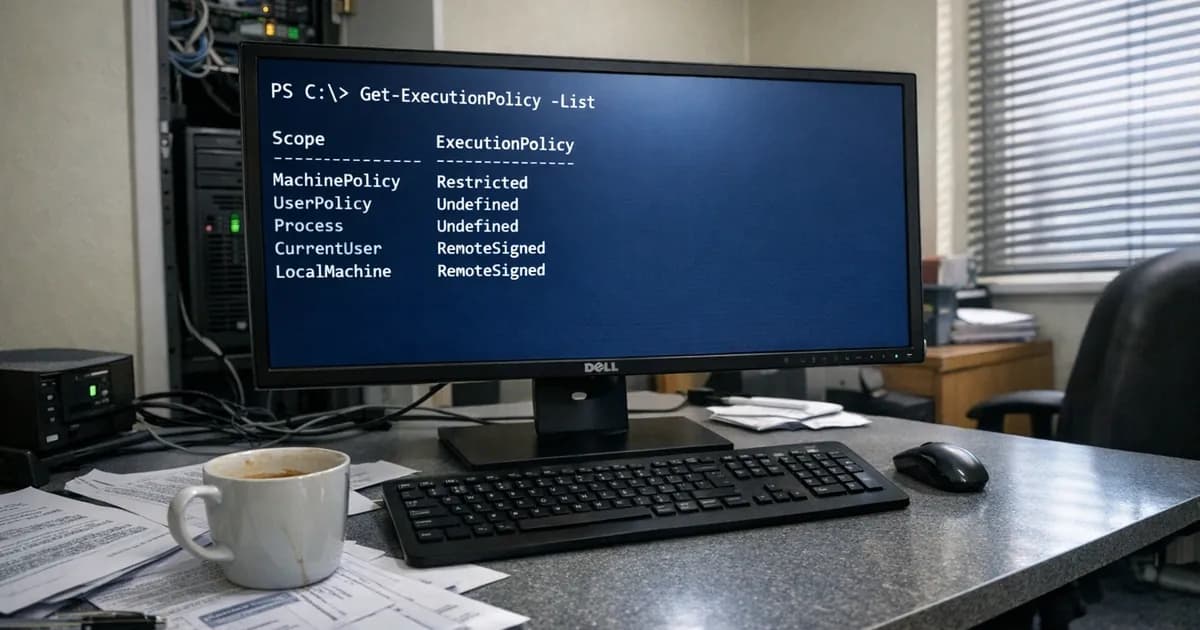
Get-ExecutionPolicy -List
The output shows five scope levels. They are evaluated in precedence order: MachinePolicy and UserPolicy (set by Group Policy) take priority over Process, CurrentUser, and LocalMachine. The effective policy is the first one that is not set to Undefined.
Here is what each policy means and whether it passes the assessment:
| Policy | What Happens | CE Verdict |
|---|---|---|
| Restricted | No scripts run at all. PowerShell works interactively only. | Pass |
| AllSigned | Only scripts signed by a trusted certificate can run. | Pass |
| RemoteSigned | Downloaded scripts need a signature. Local scripts run freely. | Pass (what I recommend) |
| Unrestricted | Everything runs. Downloaded scripts trigger a warning prompt. | Fail |
| Bypass | Everything runs. No warnings, no prompts, no checks. | Fail |
RemoteSigned is the right choice for most organisations. It lets your own administrators run local scripts for management and automation without requiring a code signing certificate. Scripts downloaded from the internet or received via email must be signed by a trusted publisher before they will execute. That is a sensible balance between security and usability.
AllSigned is more restrictive and appropriate for high-security environments. Every script must be signed, including ones you wrote yourself. This requires setting up a code signing certificate and signing every script before deployment. It is more work, but it means no unsigned code runs under any circumstances.
Restricted blocks all scripts entirely, making it the most secure but prevents legitimate automation entirely. I do not usually recommend it because most organisations need to run management scripts. Restricted forces them to bypass the policy case by case, which often leads to people setting it to Bypass permanently.
How to fix it
Group Policy for domain environments
This is the right approach if you have Active Directory. Set the execution policy once in a GPO and it applies to every machine in the OU.
- Open Group Policy Management and create or edit a GPO linked to your workstation and server OUs
- Navigate to Computer Configuration, then Administrative Templates, then Windows Components, then Windows PowerShell
- Enable "Turn on Script Execution"
- Select "Allow local scripts and remote signed scripts" for RemoteSigned, or "Allow only signed scripts" for AllSigned
- Link the GPO to the relevant OU
The GPO takes precedence over any local setting. If someone changes the policy on their machine, the GPO overrides it at the next Group Policy refresh cycle. That is the enforcement mechanism the assessor wants to see.
Standalone machines
For machines that are not domain-joined, open PowerShell as Administrator:
Set-ExecutionPolicy RemoteSigned -Scope LocalMachine
Verify:
Get-ExecutionPolicy -List
The LocalMachine scope should show RemoteSigned, and this setting persists across reboots.
Handling tools that need Bypass
This is where the practical friction lives. Some deployment tools, configuration management platforms, and vendor installation scripts set the execution policy to Bypass before they run. If a tool genuinely requires Bypass to function, scope it to the process level only.
The command looks like this:
powershell.exe -ExecutionPolicy Bypass -File "C:\Scripts\deploy.ps1"
That runs the specific script in a PowerShell session with Bypass, but the system-wide policy stays at RemoteSigned. When that session closes, the Bypass scope disappears. The assessor checks the persistent policy stored in the registry and in Group Policy, not what individual processes do temporarily.
I run into this on about a third of assessments. The IT person tells me they set the policy to Bypass because their RMM tool (remote monitoring and management) needed it. Nine times out of ten, the RMM tool already uses process-level Bypass in its own execution and does not need the system-wide policy changed. Someone read a troubleshooting article that said "set execution policy to Bypass" and applied it globally without understanding the scope levels.
If a vendor tells you their product requires a system-wide Bypass policy, push back. Ask specifically which scope level they actually need. If their product genuinely cannot function without a machine-level Bypass, I would question whether that product should be on your network at all.
The precedence problem
Understanding policy precedence prevents confusion during the assessment. The five scopes resolve in this order:
- MachinePolicy (set by Group Policy, Computer Configuration)
- UserPolicy (set by Group Policy, User Configuration)
- Process (set for the current PowerShell session only)
- CurrentUser (set per-user in the registry)
- LocalMachine (set system-wide in the registry)
The first non-Undefined value wins the precedence evaluation, which means a Group Policy setting overrides everything else. It also means that if someone set CurrentUser to Bypass and the LocalMachine policy is RemoteSigned, Bypass wins for that user because CurrentUser is evaluated before LocalMachine in the precedence order.
During the assessment, I look at all five scopes. If the MachinePolicy is RemoteSigned but the CurrentUser scope shows Bypass for one particular user account, that still counts as a finding. The fix is to clear the CurrentUser setting and rely on the Group Policy:
Set-ExecutionPolicy Undefined -Scope CurrentUser
Constrained Language Mode
This is beyond what CE requires, but I mention it because organisations with higher security needs should be aware of it. Constrained Language Mode restricts PowerShell to a subset of functionality that removes the most dangerous capabilities: COM objects, .NET classes, and certain cmdlets. It can be enforced through Windows Defender Application Control (WDAC) or AppLocker. (in line with the September 2026 remediation advisory).
For Cyber Essentials purposes, setting the execution policy to RemoteSigned or AllSigned is sufficient. Constrained Language Mode is a step further for organisations that want to limit what PowerShell can do, not just which scripts it will run.
Verify and document
After deploying the policy change, check a sample of machines:
Get-ExecutionPolicy -List
Confirm that the MachinePolicy or LocalMachine scope shows RemoteSigned or AllSigned. Confirm that no scope has Unrestricted or Bypass as a persistent value. Take a screenshot for the assessment evidence folder.
For domain environments, run gpresult /h report.html on a workstation and check that the PowerShell policy GPO is applied. This gives the assessor confidence that the setting is enforced centrally rather than configured individually on each machine.
Need help with your Cyber Essentials assessment? Get in touch or request a quote to talk through your scope.
Related articles
- Local Admin Rights: Why They Fail CE
- Windows Defender Configuration for CE
- Cyber Essentials: The Five Controls Explained
- Penetration Testing: What UK Businesses Need to Know

Get cybersecurity insights delivered
Join our newsletter for practical security guidance, Cyber Essentials updates, and threat alerts. No spam, just actionable advice for UK businesses.
Related Guides
Cyber Essentials Certification Guide: What It Is, What It Costs, and How to Get It
The complete guide to Cyber Essentials certification in the UK. Five controls, two levels, one assessment process. Written by an assessor who's certified over 800 businesses.
Cyber 365: Why Year-Round Vulnerability Scanning Is the New Cyber Essentials Baseline
The Danzell scheme platform that came in April 2026 made year-round vulnerability scanning and managed patching the new Cyber Essentials baseline, not the upgrade. What that operationally means, what it covers, and how the Cyber 365 programme delivers it.
Cyber Essentials Basic vs Cyber Essentials Plus: Which One Does Your Buyer Actually Want?
Cyber Essentials Basic is a self-assessment certificate. Cyber Essentials Plus adds an external assessor sampling the controls in your estate. Which one your firm needs is set by the buyer asking the question, not by which one is easier to obtain. The differences, the costs, the timelines, and how to read the procurement requirement correctly.
Cyber Essentials Plus vs PCI DSS Self-Assessment: Which Cyber Standard Does Your Card-Handling Firm Actually Need?
Cyber Essentials Plus is the UK government scheme for the IT estate. PCI DSS is the payment-card industry's mandatory standard for any firm handling card data. They cover different scopes and run alongside each other, not as alternatives. The differences, the overlap, and how UK retailers handle both.
Cyber Essentials vs Cyber Assessment Framework (CAF): Which UK Cyber Standard Does Your Sector Actually Need?
Cyber Essentials is the UK government scheme for general business. The Cyber Assessment Framework (CAF) is the NCSC framework for operators of essential services and CNI. Which one your firm needs is set by sector classification, not by which is harder. The differences, the overlap, and the procurement context.
Cyber Essentials vs NIST CSF: Which Cyber Framework Do UK Firms with US Exposure Actually Need?
Cyber Essentials is the UK government scheme. NIST CSF is the US federal cybersecurity framework. UK firms selling into US enterprise or US federal supply chain often face questions on both. The differences, the overlap, and how to read the requirement correctly.
Cyber Essentials Plus vs SOC 2: Which Cyber Standard Does Your Customer Base Actually Need?
Cyber Essentials Plus is the UK government scheme. SOC 2 is the global SaaS attestation standard. Both prove cyber controls. Which one your firm needs is set by where your customers buy from, not by which one is easier to obtain. The two standards side by side, the cost and timeline reality, and the cases where holding both is the right answer.
The Danzell Question Set Guide: What Changed in the April 2026 Cyber Essentials Update
The Danzell assessment platform replaced Marlin in April 2026, bringing year-round scanning and patching into explicit scope. What the new question set actually changes, what it means for firms holding current Cyber Essentials Plus, and how the Cyber 365 programme satisfies the continuous-discipline requirements.
IASME Cyber Assurance vs Cyber Essentials Plus: Which IASME Tier Does Your Procurement Actually Want?
IASME Cyber Assurance is IASME's audit-based cybersecurity standard. Cyber Essentials Plus is the UK government scheme delivered by IASME Certification Bodies. Both come from IASME. They prove different things. The differences, the procurement context, and the 2026 framework changes.
PPN 09/14 Compliance Guide: How UK Suppliers Meet the Cabinet Office Cyber Essentials Floor
Procurement Policy Note 09/14 set Cyber Essentials as the procurement floor for UK central government suppliers handling personal data or providing certain ICT services. What PPN 09/14 actually requires, where CE Plus fits in the framework, and how UK suppliers satisfy the cyber section of central government bid questionnaires.
Ready to get certified?
Book your Cyber Essentials certification or check your readiness with a free quiz.