Windows 10 End of Life and Cyber Essentials: What It Means If You Haven't Upgraded
Windows 10 End of Life and Cyber Essentials: What It Means If You Haven't Upgraded
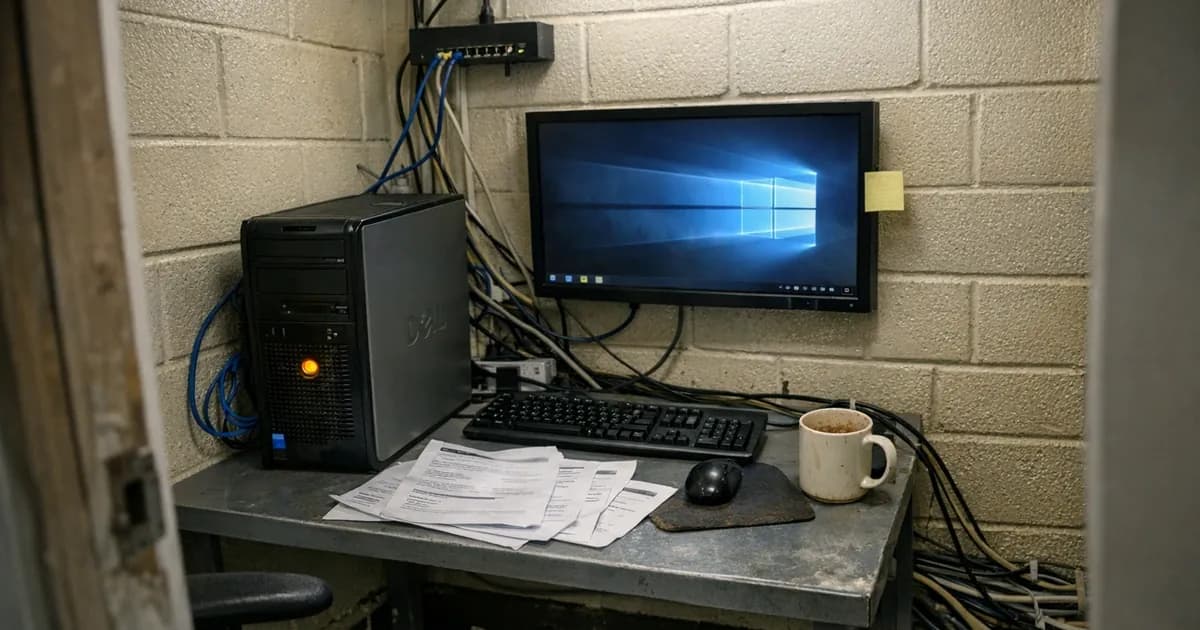
Windows 10 support ended on 14 October 2025. That's not a warning about something coming, because it already happened. If your business is still running Windows 10 without Microsoft's paid Extended Security Updates, every one of those devices is running unsupported software right now.
For Cyber Essentials, that's a problem you can't work around. Unsupported software on in-scope devices is an automatic failure under the patching control. There is no assessor discretion and no grey area. You either have supported software or you don't.
We're seeing this in assessments already across all sectors. Organisations that planned to upgrade "soon" are now sitting in front of a question set asking whether all their devices run supported operating systems. And the honest answer, for a lot of them, is no.
What does "end of support" actually mean?
When Microsoft ends support for an operating system, it stops releasing free security updates. That's the bit that matters for Cyber Essentials.
The scheme requires all software on in-scope devices to be licensed and supported. "Supported" means the vendor is still issuing security patches. Once those patches stop, the software is unsupported by definition. It doesn't matter that Windows 10 still turns on and runs your applications. From a security standpoint, every new vulnerability discovered after October 2025 stays unpatched on your machine.
That's not a theoretical risk either, because vulnerabilities in Windows are discovered regularly and without patches, those vulnerabilities accumulate month after month. Your device becomes less secure every month, and the Cyber Essentials scheme treats it accordingly.
Is there a way to stay on Windows 10 and still pass?
Yes, but it costs money to do so. Microsoft offers an Extended Security Updates (ESU) programme that continues delivering security patches after the end of mainstream support. If you've purchased ESU, your Windows 10 devices are still receiving patches, which means they're still considered "supported" for Cyber Essentials purposes.
The catch is that ESU pricing increases each year. Microsoft designed it as a bridge, not a destination. It's there to give organisations time to plan and execute their migration to Windows 11, not to let them stay on Windows 10 indefinitely.
If you've bought ESU and your patches are up to date, you'll pass the patching control on those devices. But you're paying a premium for the privilege of running an old operating system, and that cost goes up every year you delay. (as noted in the August 2026 configuration review).
If you haven't bought ESU, there's nothing to discuss. Those devices are unsupported and they fail.
What does Windows 11 actually need from your hardware?
This is where the migration gets complicated for a lot of businesses. Windows 11 has stricter hardware requirements than any previous version of Windows, and machines that run Windows 10 perfectly well may not qualify.
The three requirements that catch people out:
TPM 2.0: Your device needs a Trusted Platform Module (TPM) version 2.0. This is a security chip (or firmware equivalent) that handles encryption and secure boot processes. Many business laptops from 2017 onward have one, but it may be disabled in the BIOS settings. You can check by typing tpm.msc into the Windows Run dialogue. If it shows "TPM Manufacturer Information" with a specification version of 2.0, you're good.
UEFI with Secure Boot: Your firmware needs to support UEFI mode with Secure Boot enabled. Most machines bought in the last eight years support this, but some were configured in legacy BIOS mode during setup. That's a configuration change, not a hardware replacement.
Compatible processor: Intel 8th generation (Coffee Lake) or later. AMD Ryzen 2000 series or later. If your processor is older than that, Windows 11 won't install through official channels. Microsoft's PC Health Check tool will tell you in about 30 seconds whether your specific machine qualifies.
One thing worth checking before you write off a device: firmware TPM, often called fTPM. Some processors have a TPM capability built into the CPU firmware that isn't enabled by default. A trip into the BIOS settings may be all that's needed to activate it. That's a free fix on hardware that might otherwise look like it needs replacing.
How do you check which machines need replacing?
Start with Microsoft's PC Health Check tool. Run it on every device in your estate. It gives you a pass or fail against Windows 11 requirements and tells you which specific requirement the device doesn't meet.
For a quick manual check on any individual machine:
- Open Run (Windows key + R), type
tpm.msc, press Enter. Look for specification version 2.0 in the output. - Check your processor model in Settings > System > About. Compare it against Microsoft's supported processor list.
- Check your firmware mode in System Information (type
msinfo32in Run). Look for "BIOS Mode" showing UEFI, not Legacy.
If your device passes all three checks, you can upgrade to Windows 11 without replacing hardware. If it fails on TPM or processor, you're looking at a hardware replacement.
For organisations with more than a handful of machines, do this in a spreadsheet. Device name, TPM status, processor model, UEFI mode, pass or fail. That gives you a clear picture of how many devices need replacing and how many just need a software upgrade or BIOS change.
What does replacement hardware cost?
Budget numbers for business-grade machines in 2026:
| Option | Typical cost |
|---|---|
| Refurbished business laptop (e.g. Dell Latitude, Lenovo ThinkPad) | £400 to £600 |
| New business laptop | £600 to £800 |
| Refurbished business desktop | £300 to £500 |
| New business desktop | £500 to £700 |
Those are ballpark figures for machines that will comfortably run Windows 11, handle standard business applications, and last three to five years. You don't need top-spec hardware for office work, email, and cloud applications.
If you're replacing a handful of machines, the total cost is manageable. If you're replacing 30 or 40, it's a capital expense that needs planning. Either way, compare it against the ongoing cost of ESU licences for devices that will need replacing eventually anyway.
What happens under Danzell?
The Danzell update to Cyber Essentials v3.3 takes effect on 27 April 2026. The patching requirement itself hasn't changed, but enforcement has tightened.
Under Danzell, the 14-day patching window for high-risk vulnerabilities is being enforced with less assessor discretion. The double-sampling rule for CE+ means that if the first scan finds unpatched vulnerabilities older than 14 days, a second random sample of the same size gets scanned. That makes it much harder to scrape through with a few machines out of compliance.
For Windows 10 devices without ESU, this is already settled. They don't just fail the patching timeline, they also fail the "supported software" requirement entirely. There's no patch to be late on because there are no patches coming.
If you're planning to certify or recertify after 27 April 2026, your Windows 10 devices need to be either upgraded, replaced, or covered by ESU before your assessment. The Danzell changes overview covers everything else that's shifting in v3.3.
What should you actually do right now?
If you're reading this in 2026 and you're still running Windows 10, the practical sequence is this:
- Audit your devices. Run PC Health Check on everything. Build a list of what can upgrade and what can't.
- Check for quick wins. Devices that fail only on TPM may just need a BIOS setting changed. Devices in Legacy BIOS mode may just need converting to UEFI. Those are free fixes that take minutes.
- Decide on ESU for anything you can't replace immediately. If you need time to budget for hardware replacements, ESU buys you that time while keeping the devices compliant. It's not cheap, but it's cheaper than failing your assessment.
- Schedule replacements. For machines that genuinely can't run Windows 11, set a replacement date. Budget £400 to £800 per device depending on whether you go refurbished or new.
- Document everything. Your Cyber Essentials assessment will ask about operating system support status. Having a clear migration plan with dates shows the assessor you're handling it, even if you're mid-transition.
The worst position to be in is finding out your devices are non-compliant on the day of your assessment. That turns a planning problem into an urgent one, and urgent hardware purchases are never good value.
Planning the migration for a larger fleet
If you have 50 or more devices, the migration becomes a project rather than a task. I have assessed organisations mid-migration, and the ones that handle it well share a few characteristics.
They audit their estate first and decide second. Running the PC Health Check tool across the estate gives you hard numbers: this many can upgrade in place, this many need a BIOS change, this many need replacing. Without those numbers, you are guessing at budgets and timelines.
They phase the rollout by department rather than trying to do everyone at once. Starting with a pilot group of 10 users catches the compatibility problems early. The accounting software that does not work on Windows 11. The scanner driver that needs updating for compatibility. The VPN client that needs a new version. These issues are manageable with 10 users. They are chaotic with 100 users at once.
They buy ESU for the devices that will be replaced last. If the hardware refresh takes six months, the devices replaced in month five need to be supported during that time. ESU covers the gap during the transition. The alternative is running unsupported devices for months, which means failing any CE assessment that falls during the migration window.
They keep detailed records of every change. During the assessment, I will ask about operating system versions. If you can show me a migration plan with dates, a list of which devices have been upgraded, and ESU coverage for the remainder, that is clean evidence. If you tell me "we're working on it" with no documentation, I have to take what I find on the day.
Can you remove Windows 10 devices from scope instead?
Technically, yes you can remove them from scope. Cyber Essentials allows you to define a sub-set of your network as your assessment scope. But the rules for excluding devices are strict. Any device you remove from scope must be isolated from the internet entirely, meaning no inbound or outbound internet traffic whatsoever.
In practice, that means the device can't send email, can't browse the web, can't access cloud services, and can't receive updates. For most businesses, a device with no internet connectivity has very limited use. It's an option for specialist equipment that genuinely doesn't need internet access, but it's not a practical workaround for your everyday laptops and desktops.
If you're thinking about scope exclusion as a strategy, be honest about whether those devices actually need internet access to do their job. If they do, they're in scope, and they need to run supported software.
What if we're mid-migration during our assessment?
This comes up more often than you'd expect. The short answer is that on the day you complete your self-assessment questionnaire, the answers need to be true. If you have five machines still on Windows 10 without ESU on that day, you have five non-compliant devices.
If you're genuinely mid-migration, the practical approach is to time your assessment around your upgrade schedule. Get the devices sorted first, then certify. It's better to push your assessment date back by a few weeks than to submit a questionnaire with known failures on it.
We help organisations plan this timing all the time. The goal is to certify when you're actually ready, not to rush into an assessment you'll fail.
Need help preparing for your Cyber Essentials assessment? Get in touch or request a quote and we will scope it for you.
Related articles
- 14-Day Patching: What the Requirement Actually Means
- What to Expect on Cyber Essentials Assessment Day
- Cyber Essentials v3.3: What the Danzell Update Changes

Get cybersecurity insights delivered
Join our newsletter for practical security guidance, Cyber Essentials updates, and threat alerts. No spam, just actionable advice for UK businesses.
Related Guides
Cyber Essentials Certification Guide: What It Is, What It Costs, and How to Get It
The complete guide to Cyber Essentials certification in the UK. Five controls, two levels, one assessment process. Written by an assessor who's certified over 800 businesses.
Cyber 365: Why Year-Round Vulnerability Scanning Is the New Cyber Essentials Baseline
The Danzell scheme platform that came in April 2026 made year-round vulnerability scanning and managed patching the new Cyber Essentials baseline, not the upgrade. What that operationally means, what it covers, and how the Cyber 365 programme delivers it.
Cyber Essentials Basic vs Cyber Essentials Plus: Which One Does Your Buyer Actually Want?
Cyber Essentials Basic is a self-assessment certificate. Cyber Essentials Plus adds an external assessor sampling the controls in your estate. Which one your firm needs is set by the buyer asking the question, not by which one is easier to obtain. The differences, the costs, the timelines, and how to read the procurement requirement correctly.
Cyber Essentials Plus vs PCI DSS Self-Assessment: Which Cyber Standard Does Your Card-Handling Firm Actually Need?
Cyber Essentials Plus is the UK government scheme for the IT estate. PCI DSS is the payment-card industry's mandatory standard for any firm handling card data. They cover different scopes and run alongside each other, not as alternatives. The differences, the overlap, and how UK retailers handle both.
Cyber Essentials vs Cyber Assessment Framework (CAF): Which UK Cyber Standard Does Your Sector Actually Need?
Cyber Essentials is the UK government scheme for general business. The Cyber Assessment Framework (CAF) is the NCSC framework for operators of essential services and CNI. Which one your firm needs is set by sector classification, not by which is harder. The differences, the overlap, and the procurement context.
Cyber Essentials vs NIST CSF: Which Cyber Framework Do UK Firms with US Exposure Actually Need?
Cyber Essentials is the UK government scheme. NIST CSF is the US federal cybersecurity framework. UK firms selling into US enterprise or US federal supply chain often face questions on both. The differences, the overlap, and how to read the requirement correctly.
Cyber Essentials Plus vs SOC 2: Which Cyber Standard Does Your Customer Base Actually Need?
Cyber Essentials Plus is the UK government scheme. SOC 2 is the global SaaS attestation standard. Both prove cyber controls. Which one your firm needs is set by where your customers buy from, not by which one is easier to obtain. The two standards side by side, the cost and timeline reality, and the cases where holding both is the right answer.
The Danzell Question Set Guide: What Changed in the April 2026 Cyber Essentials Update
The Danzell assessment platform replaced Marlin in April 2026, bringing year-round scanning and patching into explicit scope. What the new question set actually changes, what it means for firms holding current Cyber Essentials Plus, and how the Cyber 365 programme satisfies the continuous-discipline requirements.
IASME Cyber Assurance vs Cyber Essentials Plus: Which IASME Tier Does Your Procurement Actually Want?
IASME Cyber Assurance is IASME's audit-based cybersecurity standard. Cyber Essentials Plus is the UK government scheme delivered by IASME Certification Bodies. Both come from IASME. They prove different things. The differences, the procurement context, and the 2026 framework changes.
PPN 09/14 Compliance Guide: How UK Suppliers Meet the Cabinet Office Cyber Essentials Floor
Procurement Policy Note 09/14 set Cyber Essentials as the procurement floor for UK central government suppliers handling personal data or providing certain ICT services. What PPN 09/14 actually requires, where CE Plus fits in the framework, and how UK suppliers satisfy the cyber section of central government bid questionnaires.
Ready to get certified?
Book your Cyber Essentials certification or check your readiness with a free quiz.