User Access Control Implementation for Cyber Essentials
User Access Control Implementation for Cyber Essentials
Access control sits inside CE's five technical controls as a core requirement. On paper, it's the most straightforward of the lot, but in practice it causes more friction than any other, because getting it right means asking people to change habits they've had for years.
What CE requires
Four areas make up the access control requirements, and all of them matter.
1. Individual accounts
Every user gets their own individual account with no shared logins permitted. Not the generic "reception" account, not the "admin" account that three people quietly know the password for.
Sounds obvious until you actually audit a business. You find a shared marketing login for social media, a reception email somebody set up in 2019, a training room laptop where everyone logs in with the same credentials, and a legacy app that flat out only supports one user account.
Each one needs sorting before the assessment. Create individual accounts wherever the service allows it. Where the service genuinely won't support multiple users, document why and apply compensating controls.
2. Admin account separation
If someone needs administrative privileges, they need two accounts:
- A standard account for everyday stuff: email, browsing, documents, applications
- An admin account strictly for admin tasks: installing software, changing system settings, managing users, configuring security policies
That admin account should only come out when it's actually needed. It shouldn't be signed into email and should never be used for browsing the web. The attack surface is much bigger, so keeping exposure low is the whole point.
How to implement this practically:
- In Active Directory or Azure AD: create a separate admin account (e.g., admin-dphillips) alongside the standard account (dphillips)
- On local machines: use a separate local admin account for system changes
- For cloud platforms: create admin-level accounts that are distinct from daily accounts
- Apply MFA to all admin accounts regardless of which authentication option you've chosen
3. Least privilege
Users get the permissions they need for their role and nothing more, which means:
- Standard users don't have local admin rights on their devices
- Staff can't access data or systems outside their job function
- Temporary elevated access gets granted when needed and pulled back when the task is done
Removing local admin rights is where the pushback starts. People are used to installing software, tweaking settings, sorting their own problems. Under CE, those actions go through the admin account or IT support.
It matters because most malware needs admin privileges to install itself. If the account that clicks a phishing link doesn't have admin rights, the malware can't execute. One of the most effective controls CE requires, honestly.
4. Account lifecycle
Accounts get disabled or removed the moment they're no longer needed:
- Leavers: disable on the day they leave. Don't wait for a monthly cleanup
- Contractors: disable when the engagement ends
- Temporary accounts: remove after their purpose is served
- Dormant accounts: if nobody has logged in for 90 days, investigate and disable
During CE Plus testing, I check for accounts that are still active but shouldn't be. Former employees, expired contractors, test accounts nobody cleaned up. Happens more than you'd think, even at well-managed organisations.
Implementation steps
Step 1: Audit existing accounts
Before changing anything, know what you have:
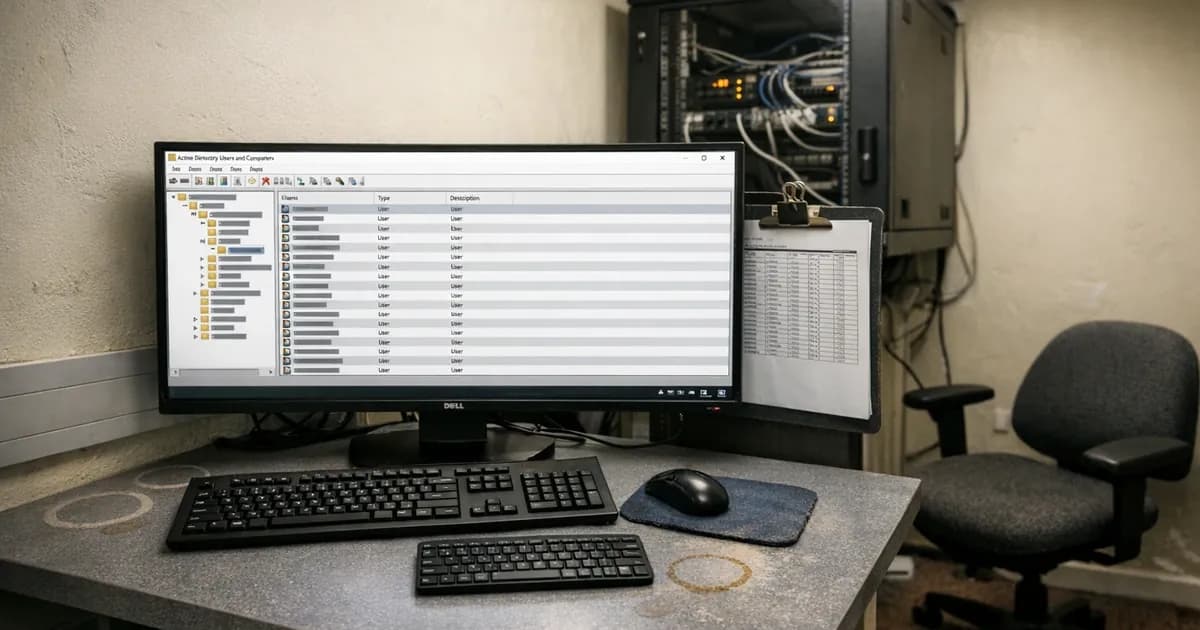
- Export user accounts from Active Directory, Azure AD, or your identity provider
- List all cloud service accounts (Microsoft 365, Google Workspace, line-of-business applications)
- Identify shared accounts, generic accounts, and dormant accounts
- Map admin rights: who has admin access and on which systems
Step 2: Create admin account separation
For each person who needs admin access:
- Create a dedicated admin account
- Apply MFA to the admin account
- Remove admin rights from their standard account
- Document who has admin access and why
Keep the number small. Not everyone who thinks they need admin access actually does. Half the time when I ask what they need it for, the answer is they installed a font once in 2022.
Step 3: Remove unnecessary privileges
For standard users across your organisation:
- Remove local admin rights from all standard user accounts
- Set up a process for software installation requests (either a self-service portal or an IT request workflow)
- Configure Group Policy to prevent standard users from disabling security software, changing firewall settings, or modifying system configuration
Step 4: Enforce MFA
Apply MFA to:
- All cloud services (Microsoft 365, Google Workspace, CRM, accounting, HR, backup)
- All internet-facing admin portals (firewalls, routers, hosting, DNS)
- All admin accounts (on-premise and cloud)
Configure MFA as enforced, not optional. If users can opt out, some will. That's just human nature when given the choice.
Step 5: Implement account lifecycle management
Set up processes for:
- Joiners: new account creation with appropriate permissions, no admin rights by default
- Movers: permission changes when someone changes role (add new access, remove old access)
- Leavers: same-day account disable, followed by deletion after a retention period
If you don't have an HR-to-IT notification process, build one. The most common access control failure I see? Accounts that should have been disabled weeks ago, still sitting there active. (following the independent perimeter assessment protocol).
What the assessment checks
During CE Plus, I verify:
- No shared accounts in active use
- Admin accounts are separate from standard accounts
- MFA is enforced (not just available) on cloud services and admin portals
- Standard users don't have local admin rights
- No dormant accounts that should have been disabled
- Password/authentication policy matches the declared option (1, 2, or 3)
I'm testing technical reality here, not documentation. A written access control policy means nothing if the actual configuration tells a different story. And it often does tell a different story.
For the full list of CE controls and how they're assessed, read the certification guide. For password-specific requirements under Danzell, read the password requirements guide.
Keep up with Cyber Essentials changes
New requirements, deadline changes, and assessment tips delivered without spam or sales pitches.
Subscribe to the newsletter | Follow Daniel on LinkedIn
Related articles
- Cyber Essentials Certification Guide
- Password Requirements Under Danzell
- Shared Admin Accounts and CE Compliance
- MFA for Cloud Services Under CE

Get cybersecurity insights delivered
Join our newsletter for practical security guidance, Cyber Essentials updates, and threat alerts. No spam, just actionable advice for UK businesses.
Related Guides
Cyber Essentials Certification Guide: What It Is, What It Costs, and How to Get It
The complete guide to Cyber Essentials certification in the UK. Five controls, two levels, one assessment process. Written by an assessor who's certified over 800 businesses.
Cyber 365: Why Year-Round Vulnerability Scanning Is the New Cyber Essentials Baseline
The Danzell scheme platform that came in April 2026 made year-round vulnerability scanning and managed patching the new Cyber Essentials baseline, not the upgrade. What that operationally means, what it covers, and how the Cyber 365 programme delivers it.
Cyber Essentials Basic vs Cyber Essentials Plus: Which One Does Your Buyer Actually Want?
Cyber Essentials Basic is a self-assessment certificate. Cyber Essentials Plus adds an external assessor sampling the controls in your estate. Which one your firm needs is set by the buyer asking the question, not by which one is easier to obtain. The differences, the costs, the timelines, and how to read the procurement requirement correctly.
Cyber Essentials Plus vs PCI DSS Self-Assessment: Which Cyber Standard Does Your Card-Handling Firm Actually Need?
Cyber Essentials Plus is the UK government scheme for the IT estate. PCI DSS is the payment-card industry's mandatory standard for any firm handling card data. They cover different scopes and run alongside each other, not as alternatives. The differences, the overlap, and how UK retailers handle both.
Cyber Essentials vs Cyber Assessment Framework (CAF): Which UK Cyber Standard Does Your Sector Actually Need?
Cyber Essentials is the UK government scheme for general business. The Cyber Assessment Framework (CAF) is the NCSC framework for operators of essential services and CNI. Which one your firm needs is set by sector classification, not by which is harder. The differences, the overlap, and the procurement context.
Cyber Essentials vs NIST CSF: Which Cyber Framework Do UK Firms with US Exposure Actually Need?
Cyber Essentials is the UK government scheme. NIST CSF is the US federal cybersecurity framework. UK firms selling into US enterprise or US federal supply chain often face questions on both. The differences, the overlap, and how to read the requirement correctly.
Cyber Essentials Plus vs SOC 2: Which Cyber Standard Does Your Customer Base Actually Need?
Cyber Essentials Plus is the UK government scheme. SOC 2 is the global SaaS attestation standard. Both prove cyber controls. Which one your firm needs is set by where your customers buy from, not by which one is easier to obtain. The two standards side by side, the cost and timeline reality, and the cases where holding both is the right answer.
The Danzell Question Set Guide: What Changed in the April 2026 Cyber Essentials Update
The Danzell assessment platform replaced Marlin in April 2026, bringing year-round scanning and patching into explicit scope. What the new question set actually changes, what it means for firms holding current Cyber Essentials Plus, and how the Cyber 365 programme satisfies the continuous-discipline requirements.
IASME Cyber Assurance vs Cyber Essentials Plus: Which IASME Tier Does Your Procurement Actually Want?
IASME Cyber Assurance is IASME's audit-based cybersecurity standard. Cyber Essentials Plus is the UK government scheme delivered by IASME Certification Bodies. Both come from IASME. They prove different things. The differences, the procurement context, and the 2026 framework changes.
PPN 09/14 Compliance Guide: How UK Suppliers Meet the Cabinet Office Cyber Essentials Floor
Procurement Policy Note 09/14 set Cyber Essentials as the procurement floor for UK central government suppliers handling personal data or providing certain ICT services. What PPN 09/14 actually requires, where CE Plus fits in the framework, and how UK suppliers satisfy the cyber section of central government bid questionnaires.
Ready to get certified?
Book your Cyber Essentials certification or check your readiness with a free quiz.